Sending Thank You Emails
This article covers how to send Thank You emails from PCRT after service is completed.
After services have been performed, a Thank You email will be sent to customers with emails on file. This is done manually through PCRT by clicking the Thank you button from either the _Email* *_menu on the Work Order or from the _Recent Work Orders _section of the Legacy Sidebar.
You will be sending Thank You in both ways as there will be times when reviewing the Work Order (WO) is necessary prior to sending the email via the Thank You button. This will be discussed later in this procedure.
Legacy Sidebar
To access the Legacy Sidebar, hover over the Store location shown in the top left corner of PCRT to expand the drop down menu.
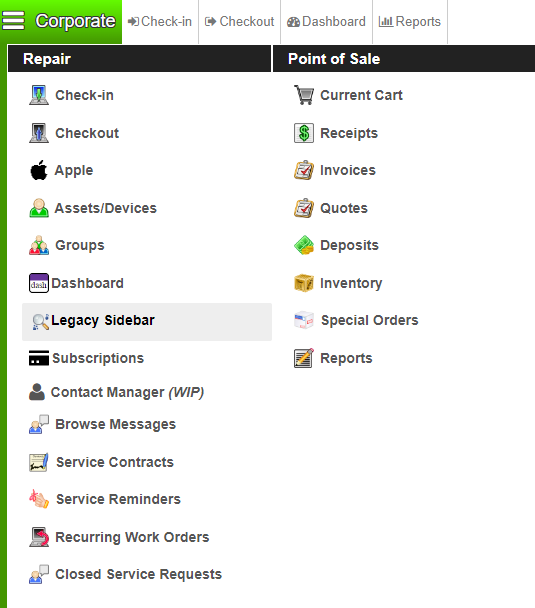
You’ll load a page consisting of sections with WOs listed in each. Scroll down this page until you reach the Recent Work Orders section towards the bottom. It is the last section of the page.
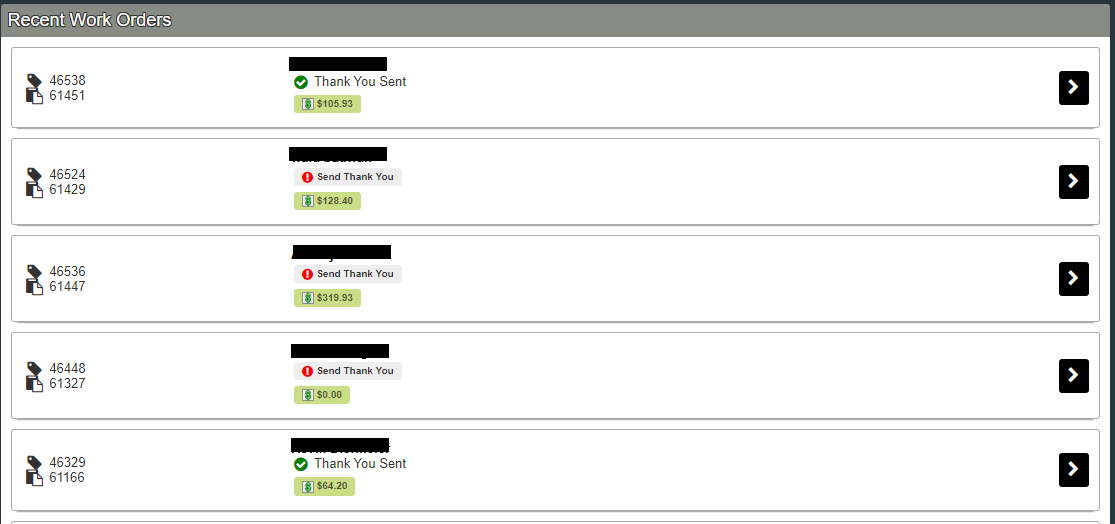
Looking at the image above you can see a few differences between the recent WOs that have been closed. Some items have a red exclamation mark with a button that says _Send Thank You_, others have a green check mark with the phrase _Thank You Sent_. Under those phrases you see receipts, some with charges listed and one with zero balances.
To begin we will start with the items marked with the red exclamation mark and paid charges.
Paid WOs
When a recent WO shows a recent with a monetary value, you can click the Send Thank You button nestled between the customer name and receipt.

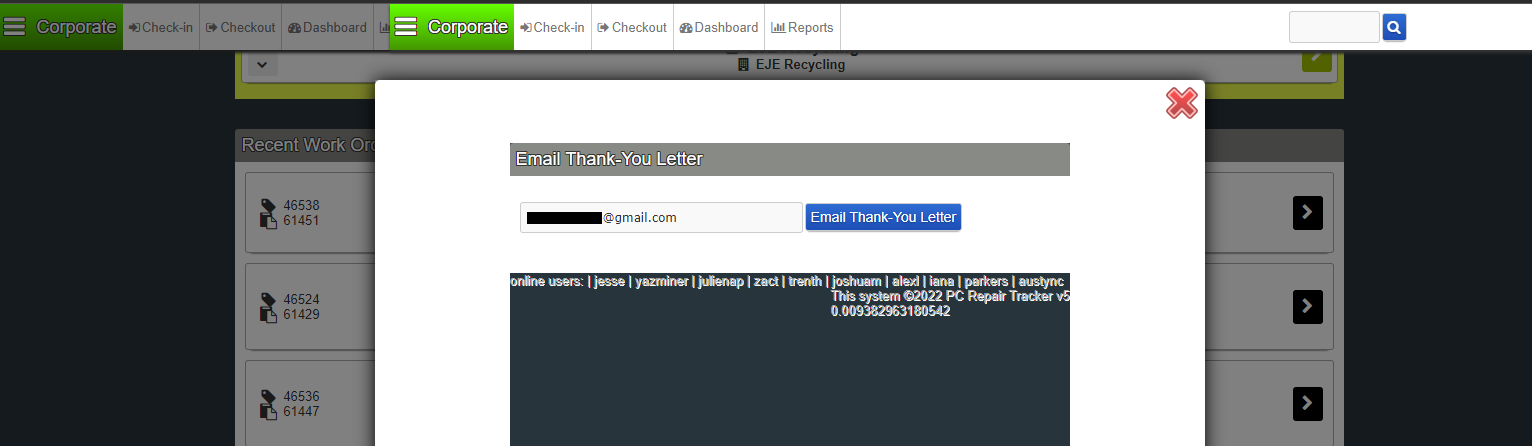
The _Email Thank-You Letter_ pop-up will appear showing you the email address the message will be sent to. Click the blue Email Thank-You Letter button.
For a split second the screen will change to white with the following message in the top left corner of the screen.
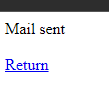
Once this clears, the WO for that customer will open. Do a once over of the WO making sure the customer name is capitalized appropriately and if you notice any errors or steps that weren’t followed let the manager know. If there is nothing of note, return to the Legacy Sidebar to continue sending Thank-You emails.
Zero Balance WOs
When a recent WO shows a receipt with a zero balance, click the arrow to the right of the row to view the WO.

Scroll down the WO to view the Repair Cart. After determining the reason for the zero balance you can proceed with sending the Thank You email from the WO. If the reason for the zero balance is along the lines of “_Repair Refused_” or “_Duplicate WO_” then do not send a Thank You email.
If the cart is marked “_No Charge_” scroll down further to review the notes to see the reason for the no charge. If the reason is along the lines of the repair not being done or the customer declining the repair, do not send a Thank You email. If the reason is along the lines of warranty coverage or the cart merely being marked incorrectly, you can proceed with sending the Thank You email from the WO.
To send a Thank You letter from the WO, scroll up to the top section which shows the WO status and two drop down menus labeled _Print_ and _Email._

Click the gray box labeled Choose under the title _Email_.
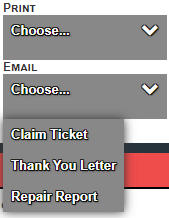
Select Thank You Letter from the available options. The _Email Thank-You Letter_ page will now open.
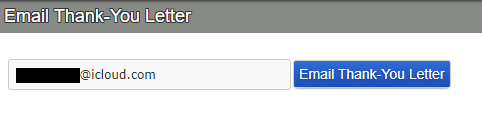
Click the blue Email Thank-You Letter button. For a split second the screen will change to white with the following message in the top left corner of the screen before returning you to the WO..
After you’ve returned to the WO, you can return to the _Legacy Sidebar_ to continue sending Thank You emails.
Invoiced WOs
When you see a WO with an invoice instead of a receipt, as shown in the image below, do not send a Thank You letter.
