Billing: Deposits
How and when to process a deposit for a repair.
Customers may request to keep their devices while we wait for parts to arrive. They may do this by paying a deposit (equal to the total cost of repairs).
When to Take Deposits
Deposits can be taken at any time for repair costs. They must be taken for the full repair cost when a customer wishes to keep their device while we wait for parts to come in. Partial deposits are accepted if the customer wishes to pay something up front prior to repair completion.
How to take deposits
In order to take a deposit, you will need to have the cart of the Work Order (WO) filled.
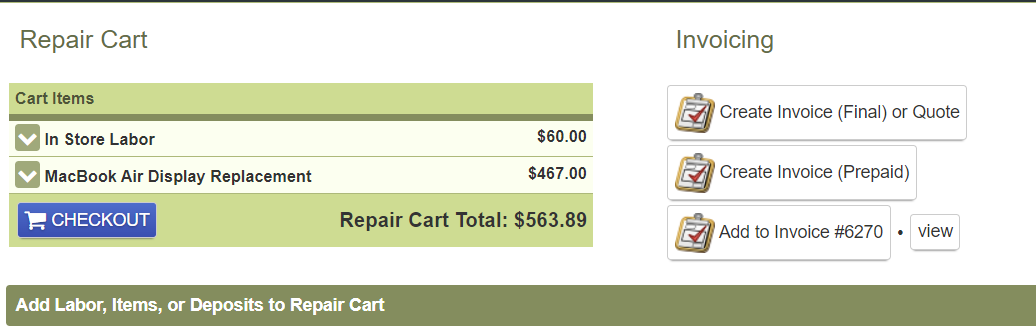
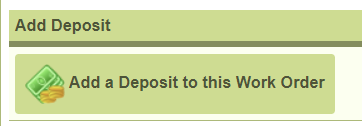
When the cart has the repair parts and labor, make sure to notate the total after tax. This is the amount needed for the deposit. Click Add Labor, Items, or Deposits to Repair Cart at the bottom of the Repair Cart section of the WO. Scroll down until you see the Add Deposit section. Click Add a Deposit to this Work Order.
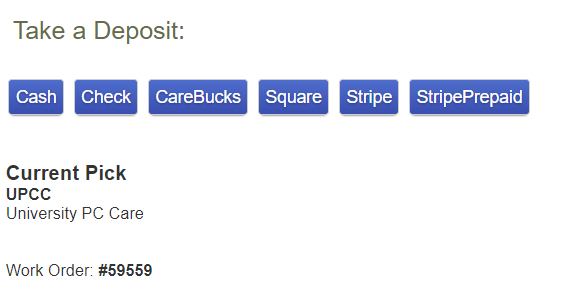
A new page titled Take a Deposit will load. From this page you will select the payment method being used. Payment should primarily be taken via Square reader at the counter or Stripe if being paid over the phone (or if the Square reader is down).
For Square, the screen will load to look like the image below.
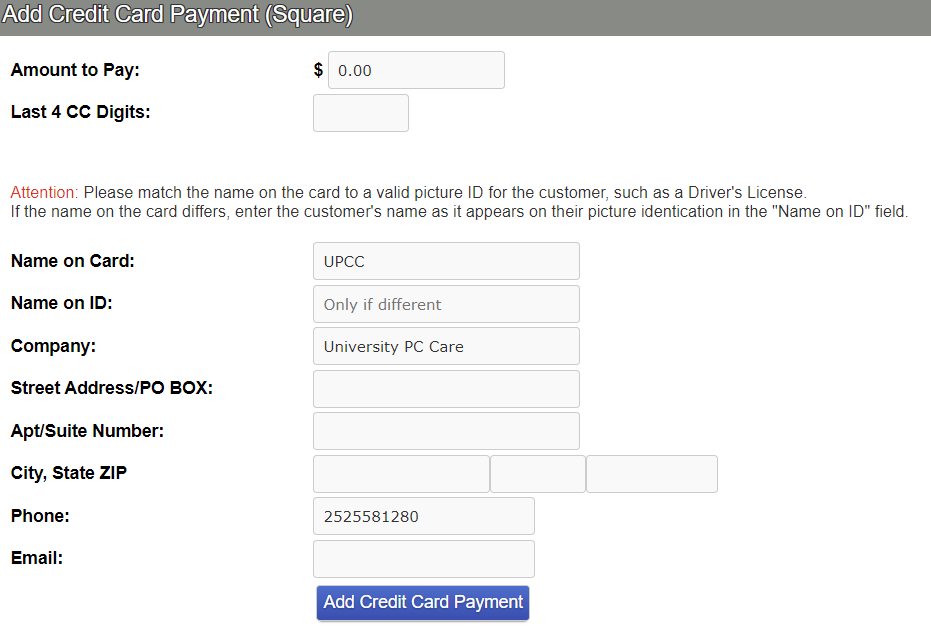
Manually enter the amount to be paid and the last four (4) digits of the credit card number. The remaining information should auto-fill from what is listed on the WO. If it doesn’t enter it manually. Edit the Name on Card *and Name on ID* fields if the information differs from the WO customer information.
BEFORE CLICKING ADD CREDIT CARD PAYMENT run the card through the Square reader. When the payment has been processed then you can click the blue Add Credit Card Payment button.
The purpose is in the event the payment doesn’t go through for that card you do not have to create another deposit and request that the original deposit be voided.
For Stripe, the screen will load to like the image below:
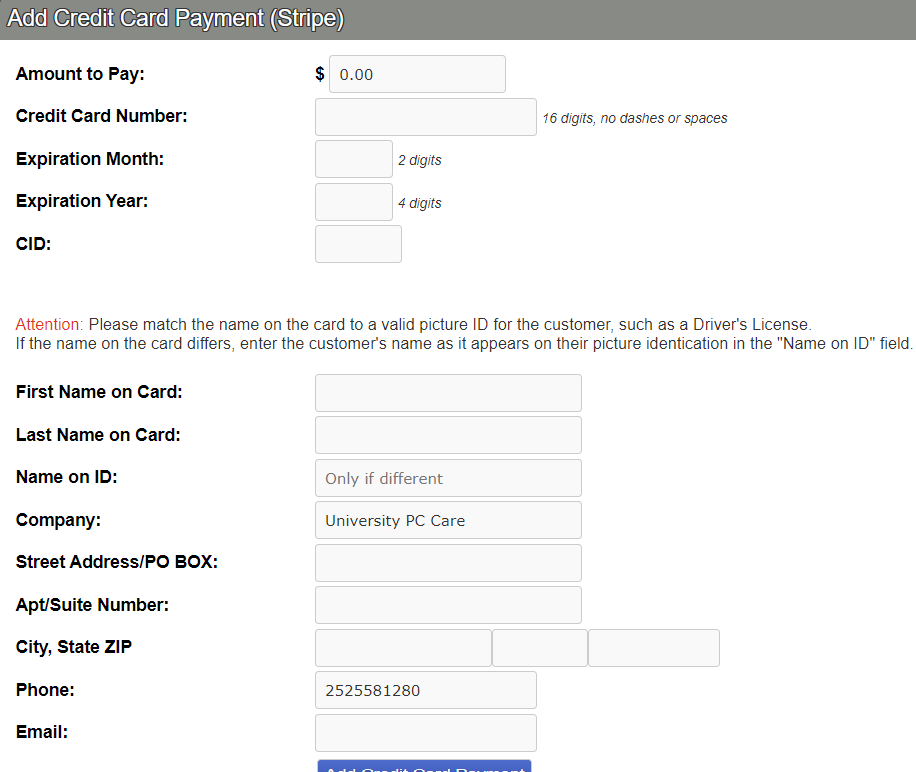
You will be running the card on this screen. Manually enter the amount to be paid and the entire credit card number, expiration date and security code (AMEX is the only service with a 4 digit code that is on the front of the card, all others are 3 digit on the back).
The remaining information should auto-fill from what is listed on the WO. If it doesn’t enter it manually. Edit the Name on Card field if the information differs from the WO customer information.
Read back the card information to make sure the information you input matches what the customer provided. If the payment does not process you will be taken to the following screen. The reason for the declined payment will change based on the circumstances.
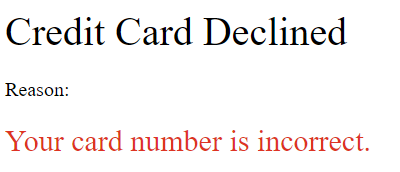
If the payment is declined, you will have to go back to the WO and get to the deposit screen to try another card or payment method.
For Cash, the screen will load to look like the image below:
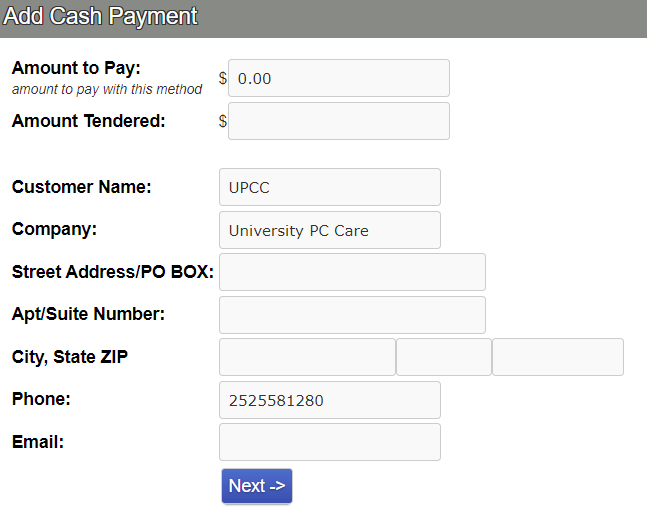
Manually enter the amount to be paid and the amount given to you by the customer. The customer information should auto-fill from the WO. If it doesn’t manually enter the customer information.
After clicking Next, you will be taken to a screen that shows the amount due as change. Click Add Payment to generate the deposit receipt. Print this for the customer’s records if they request it.
Refunding Deposits
Refunds can be processed prior to repairs being started. Once a repair has begun the deposit is non-refundable. Refunds will be given with a deduction of our minimum bench fee plus tax at manager’s discretion.
Credit or Debit card deposits will be refunded to the card that was used to make the deposit. The length of time for the return is dictated by the customer's financial institution.
Cash deposits are refunded by check, they are not to be refunded from the register unless instructed otherwise. Checks are mailed to the address we have on file and can take three (3) to five (5) business days to be mailed.