Check-in WO in PCRT
This article covers how to create a check-in from a scheduled appointment in PCRT
Appointments that are scheduled through our UPCC website will generate temporary appointment information in PCRT. You can view this information by going to the Check-in page of PCRT.
Check-in a Scheduled Appointment
Review Procedure- Appointments: Viewing in PCRT before proceeding.
Once you have found the customer’s appointment from the generated list, hover over the information to view two option buttons as shown below.
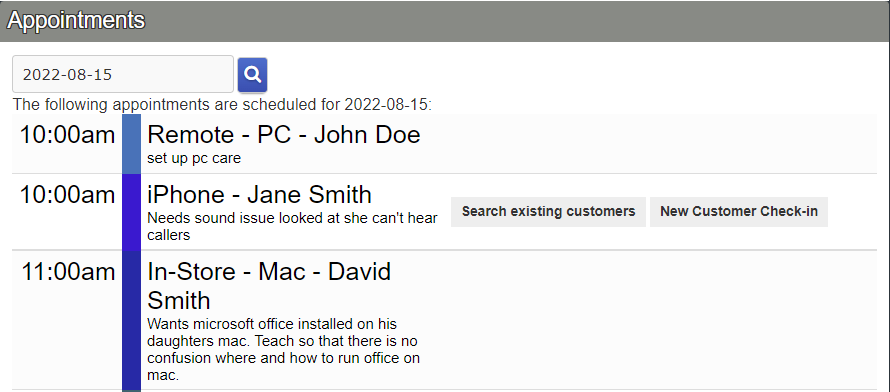
Click Search existing customers if the customer is a repeat customer. All assets matching the customer’s contact information.
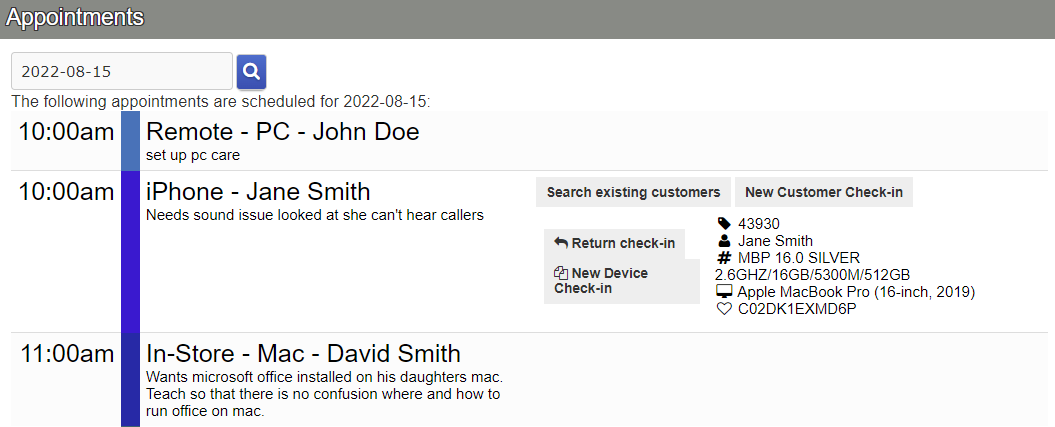
If the customer has an existing asset with us, ask the customer which device we will be looking at for them. If it is one of the devices we have previously had checked in then click, Return Check-in. This will take you to the check-in page with their information automatically filled in the appropriate places along with the problem description listed on the appointment. You will need to fill in the solution.
If the device being serviced has not been checked in previously but the customer has had service with us before, click New Device Check-in. You will be taken to the check-in page with their information automatically filled as well as the problem description. You will need to fill in the device information and solution before opening the Work Order (WO).
If the customer has never done work with us before, click New Customer Check-in. The information listed from the appointment will automatically fill in the appropriate fields. The device information will need to be filled in manually as well as the solution.
In either of the three cases, make sure to go over the claim ticket with the customer after the WO is created.