Sending to Remote Team
Some information in this article is outdated. Please be mindful when proceeding.
Once diagnostics have been completed on a computer, and it is determined that the issue is related to software and not hardware, it is time to get the computer over to the Remote Team so they can finish the software work.
Sending Macs
The computer should be connected to Ethernet, either directly or through an adapter, at a workstation where the device can remain while the Remote Team is working on it (i.e. _not_ directly at your workstation).
- Connect the computer to a known good power adapter.
- Access Caffeine by Accessing the Data Server. Open the folder “SOFTWARE” → “Mac - Misc” → Caffeine. Caffeine is used to keep the computer awake.
- Drag and drop Caffeine onto the desktop, then run it.
- Additionally, copy the “Cleanup” folder and paste it onto the desktop.
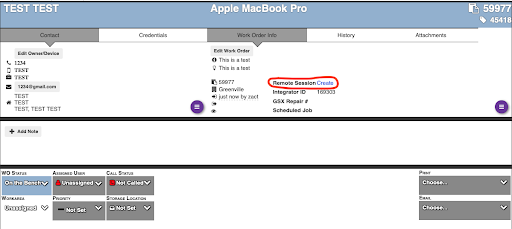
On your device, open the Work Order in PCRT and click “Create” under the “Work Order Info” tab. This will create a remote session associated with this device and Work Order
On the customer’s computer, go to https://myremote.care and enter the Work Order number in the “Join with a code“ section.
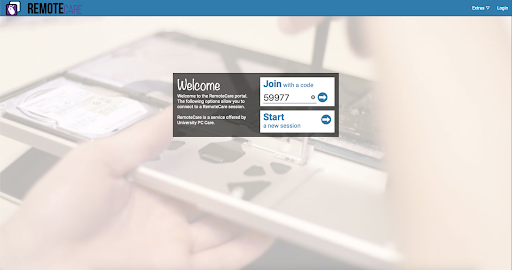
- The arrow pointing to the right should light up, allowing you to click it
- Allow the remote client to finish downloading and open it.
Open System Preferences → Security & Privacy
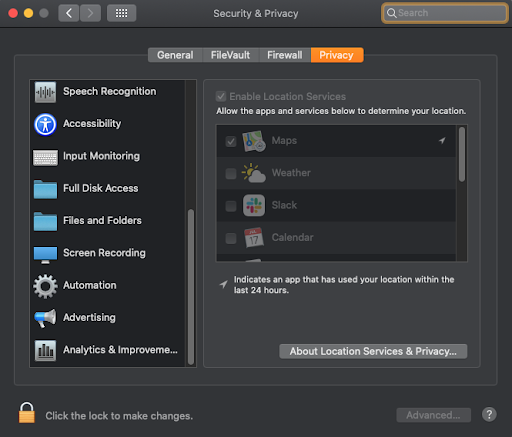
- Add the new remote client to any sections titled “Accessibility”, “Screen Recording”, and “Full Disk Access”
- After adding the remote client to the relevant sections, close and reopen the client or open it, if it’s not already
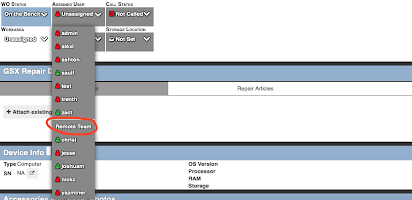
In PCRT, assign the Work Order to the remote team
Sending Windows
The computer should be connected to Ethernet, either directly or through an adapter, at a workstation where the device can remain while the Remote Team is working on it (i.e. _not_ directly at your workstation).
- Connect the computer to a known good power adapter
- Open File Explorer \ Click on Network in the navigation pane on the left. If prompted, click the banner to enable “Network Discovery and File Sharing”
- Access the data server for your respective store
- Find the “Cleanup” folder and Copy & Paste it to the desktop
- Open the “Cleanup” folder on the desktop and right click on the “UPCCPowerMenu2.exe” and select “Run as Administrator”
- Press Windows Key + Z
Click “Run Setup” \ On your device, open the Work Order in PCRT and click “Create” under the “Work Order Info” tab. This will create a remote session associated with this device and Work Order
Go to the website myremote.care and enter the Work Order number in the “Join with a code“ section.
- The arrow pointing to the right should light up, allowing you to click it.
- Allow the remote client to finish downloading and open it up
In PCRT, assign the Work Order to the remote team
This should allow the remote technician to the computer and have all the tools they need