Replying to SupportPal Tickets
This article covers how to reply to tickets via Support Pal
Customers can reach out to us in a multitude of ways, the second most common method is emailing which goes into our ticketing system, SupportPal. When doing ticket maintenance there are a few important things to remember:
- Be courteous
- Be respectful
- Be thorough
- Be timely
You will need access to SupportPal and Slack. If you currently do not have access to either program, please contact Admin. to request access to these programs.
Replying to Tickets
When replying to tickets, there are a few resources you can use to aid in responding. Firstly, it’s recommended to review Policy- Email Etiquette and Procedure- Sending Email. These two documents outline how and when to send emails as well as the appropriate way to communicate via email.
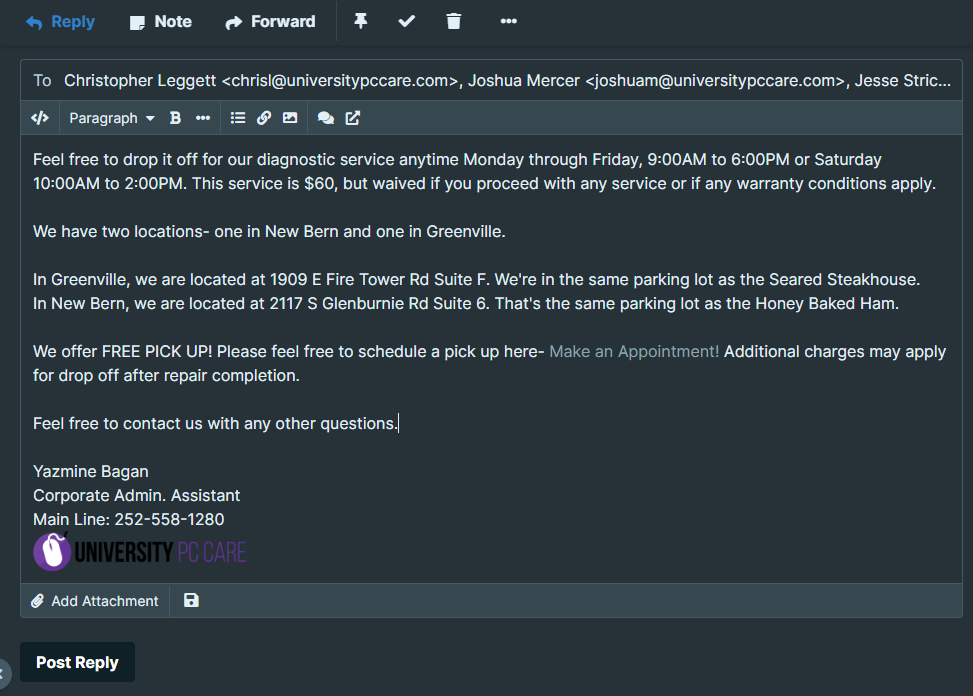
In addition to these documents, within SupportPal you will find Canned Responses that can be used to quickly provide answers to frequently asked questions. You can find the canned responses in the toolbar under the _To_ section of the email response. Click on the chat bubble symbol to view the available responses.

When you are ready to respond to a ticket, click on the ticket name. Using the example below, the ticket name would be _#PC-57021- Creating Tickets_. Each ticket will have a unique ticket name based on the department it was created in and the subject entered by the creator of the ticket.

You will load into the ticket with a similar view to the example below. Your screen may vary based on the current mode settings you have set.
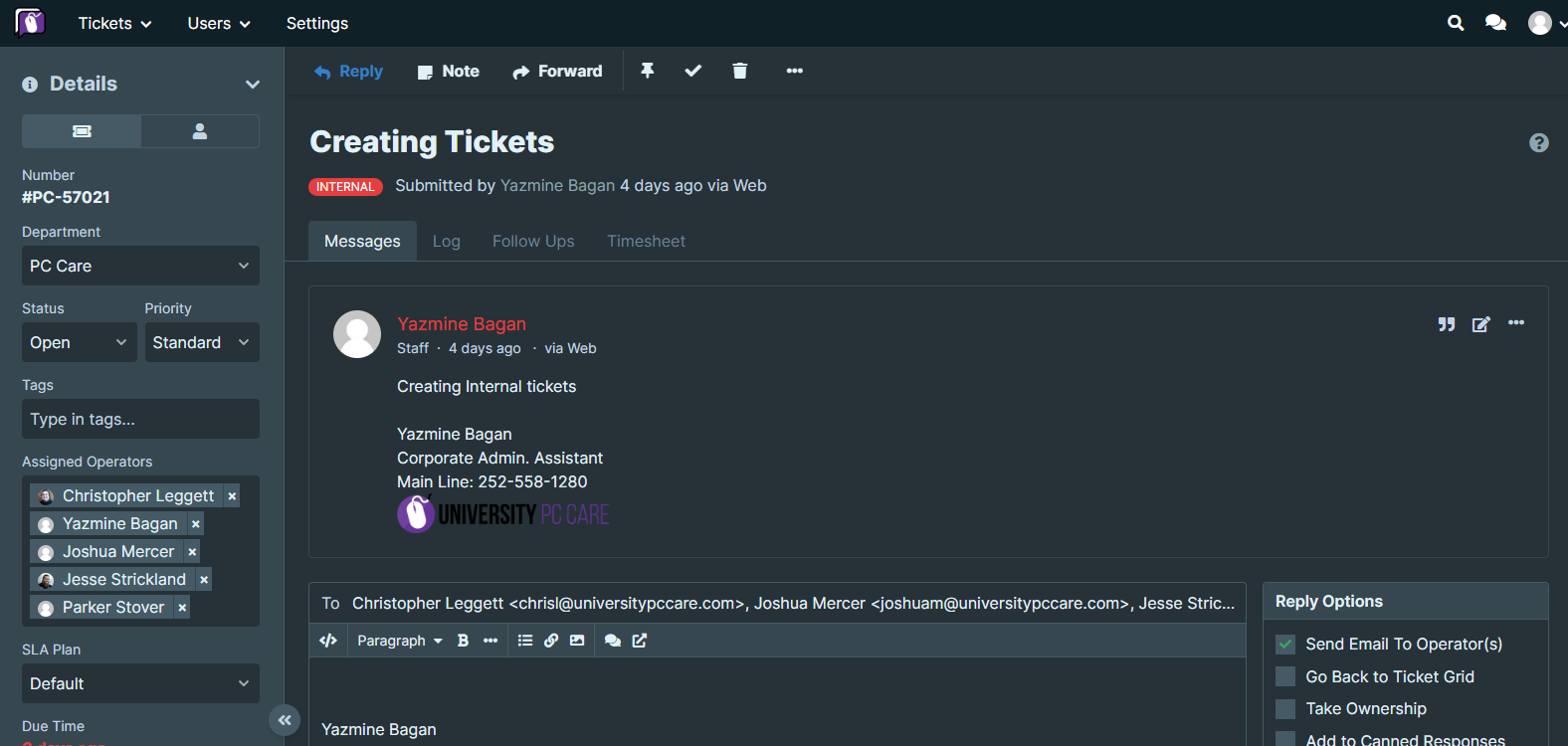
Here, if you plan on responding to the customer directly, click on Reply at the top left. In the image above you will see if highlighted blue as the active selection. If you wish to draft a response or simply create notes for others to view, click on Note. It will be highlighted orange when it is selected. To forward the ticket outside of the system, click Forward. It will be highlighted purple when it is selected.
While preparing your response, refer to the available policies, procedures and canned responses. All canned responses and templates that are available can be altered to fit the situation you are responding to. For instance, if you are using the Drop off for Diagnostics canned response you can add to it to include any cost of repairs that are requested as well as the current turnaround time for instore repairs.
After you have typed up your response, review it thoroughly checking for spelling, grammar and verifying you have provided the correct information.
If you need additional time or require someone to review your response prior to sending, leave the message there. It will automatically save your response as a draft on the ticket without additional steps to be taken. You can verify your message has been saved as a draft at the bottom of the body text field.

The eraser icon can be clicked to remove your saved draft and start your response over.
Once you are ready to send your message, click Post Reply at the bottom left of the screen.