Mac Diagnostics
The First Step In Hardware Repairs
Hardware diagnostics should be the first step performed in most repairs, with some exceptions (remote appointments, for example). You must first ensure that the hardware is reliable and undamaged before repairing software issues.
1. Recreate the customers issue
When dealing with a customers computer, it is important that the technician working on the device to see exautly what the customer is reporting as the problem. Sometimes you will find that the issue is different then you expected, or recognize the solution right away.
Recreate the issue the customer is reporting, and record in the notes any details that were not captured at check in.
2. Blow dust out of machine
iMacs: This section does not apply till later to iMacs as opening up the computer only comes after the customer has authorized a repair. Once the customer has authorized a repair, and the computer is open, then blow out the computer. iMacs have the same guides that Macbooks do, however the section is under Display Removal.
Using GSX2, follow the specific instructions to open the computer. Every device has a disassembly guide in GSX2 at Service Guides > Repair. For example, the relevant guide for laptops is "Bottom Case".
Use the compressed air machine to blow out the dust. Make sure you open the back door so that dust Isn’t blown into the shop. Make sure you turn off and put back the air compressor hose when you’re finished.
When blowing dust out of a fan (including case fans, CPU fans, and fans inside the power supply) it is important that you > prevent or minimize the fan's spinning. Using compressed air may rotate the fan much faster than its rated limit and the > sudden burst of air pressure can damage the fan blades, especially for smaller and/or older fans where the plastic may be > thin or brittle.
- For exposed fans like those on desktop CPU, GPU, and case fans it is sufficient to hold the fan in place by pressing gently on the center of the fan to prevent it from spinning.
- For fans that are covered or obstructed, such as the CPU fan in a laptop, use a small straightened paperclip to block the > spinning motion of the fan by inserting the paperclip in the gap between two fan blades. Do not use excessive force to do > this and be careful not to damage any grates or vents on the exterior of the case.
- Do not stick any objects inside a power supply to prevent the fan from spinning! Power supplies carry enough voltage to be dangerous and you can harm yourself or the customer's computer in the process.
- For power supply fans and other fans you cannot safely prevent from spinning, use lighter bursts of air and let the fan completely stop spinning between bursts to minimize the amount the fan spins.
3. Check for exterior damage to the machine
Use this time to perform a more thorough inspection. If the damage is visible, take a picture and attach it to the WO for record keeping.
Look for cracks, missing or broken components, evidence of liquid damage, excessive dirt and grime, burn marks, dust, tobacco smells. Damage also includes “dog-eared” corners of the device, dents that are easily noticeable several feet away from the device, heavy gouges in the case, screen damage including cracked or shattered glass panel or damaged LCD panel underneath, damage to the keyboard or trackpad etc.
Bugs if you find bugs or evidence of bugs (roaches, ants, etc), turn the device off and bag it up in a trash bag. Seal the trash bag and wrap that in another trash bag, and seal it. Call the customer and inform them that the device is a health hazard and that they will need to address that issue on their own time before bringing the device back to us.
4. Check the Warranty
Some repairs are more reasonably handled as an on-site or mail-in repair with the manufacturer under warranty if available.
- Log into GSX2 and search the serial number in the search bar. The warranty status will be directly on the left side, below the picture of the computer.
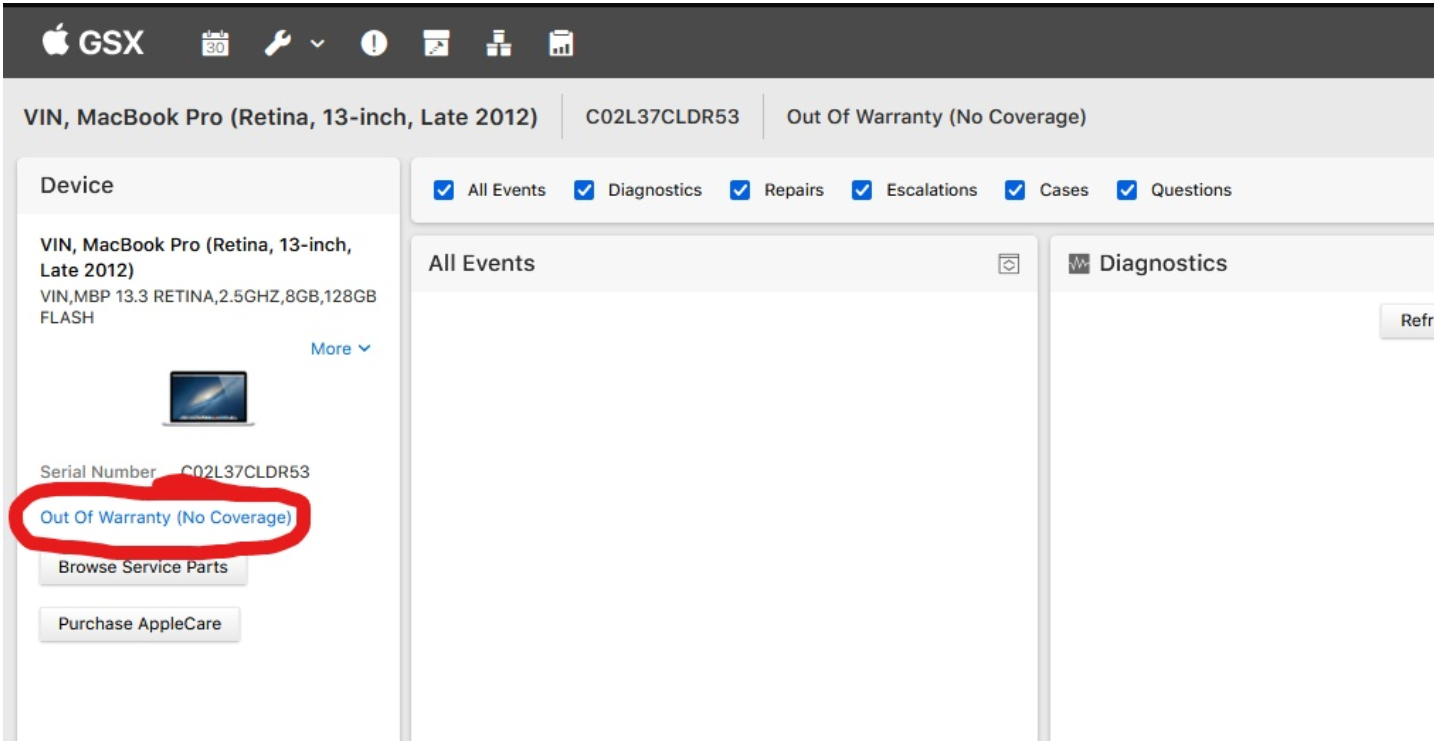 2. Copy and paste the warranty information into a tech note on the device’s work order.
5. Run Diagnostics
- If the computer was released in 2014 or later, press and hold Option + D while powering on the computer. This will boot to the AST2 computer.
Run MRI (Mac Resource Inspection) and make a tech note in the work order with the results. AST2 already includes diagnostics for Ram and the Hard drive.
- If the computer was released before 2014 hold down the option key on powering on the computer. This will take you to Mac’s Boot menu. There you will see the option AST1.
After running AST1 Restart machine and hold down the same key(s) as before. This time, choose the option to boot into Tech Tools. Select the newest version of Tech Tools that can be used on this computer.
- After running AST, Launch Tech Tools from the dock. Run the disk drive surface scan, speed test, SMART scan, video, and memory tests. Make a tech note with the results.
Launch Disk Utility from the Utilities folder in the Applications folder. Verify or repair the disk, depending on what options are presented in Disk Utility.
If the computer will not turn on then you would simply focus on the physical inspection portion. GSX2 has great troubleshooting guides that you should follow by checking under Startup and Power -> No Power
6. Addressing the customers concern
If the customer has complained of a specific issue (such as overheating, slow speeds, or the device not charging, etc), address this now.
You can run more specific diagnostics from AST2, AST1, or Tech Tools to help understand exactly what is causing the customer issues.
GSX2 has additional troubleshooting guides by looking up the computers serial number > Service Guides > Troubleshooting > Then finding the symptoms the customer is having.
After having finished diagnostics now is the best time to call the customer and authorize any repairs needed. Make sure you are aware of all of the customers options and that you know the prices of any relevant repairs.
Customers can always recycle their computers with us for free.
- If they already have a work order with us, make sure to collect the customers drivers license number and add it to the notes so that we have verification.
If customers are not interested in going through with the repair make sure to offer data migration, if possible, as an option.