Assigning SupportPal Tickets
How to assign tickets via Support Pal
Customers can reach out to us in a multitude of ways, the second most common method is emailing which goes into our ticketing system, SupportPal. When doing ticket maintenance there are a few important things to remember:
- Be courteous
- Be respectful
- Be thorough
- Be timely
You will need access to SupportPal and Slack. If you currently do not have access to either program, please contact Admin. to request access to these programs.
Assigning Tickets
While reviewing tickets you may need to assign tickets to a different department than they were originally entered into and assign specific technicians that may not already be assigned to it. Both can be done from the left-hand column within the ticket itself once you are viewing.
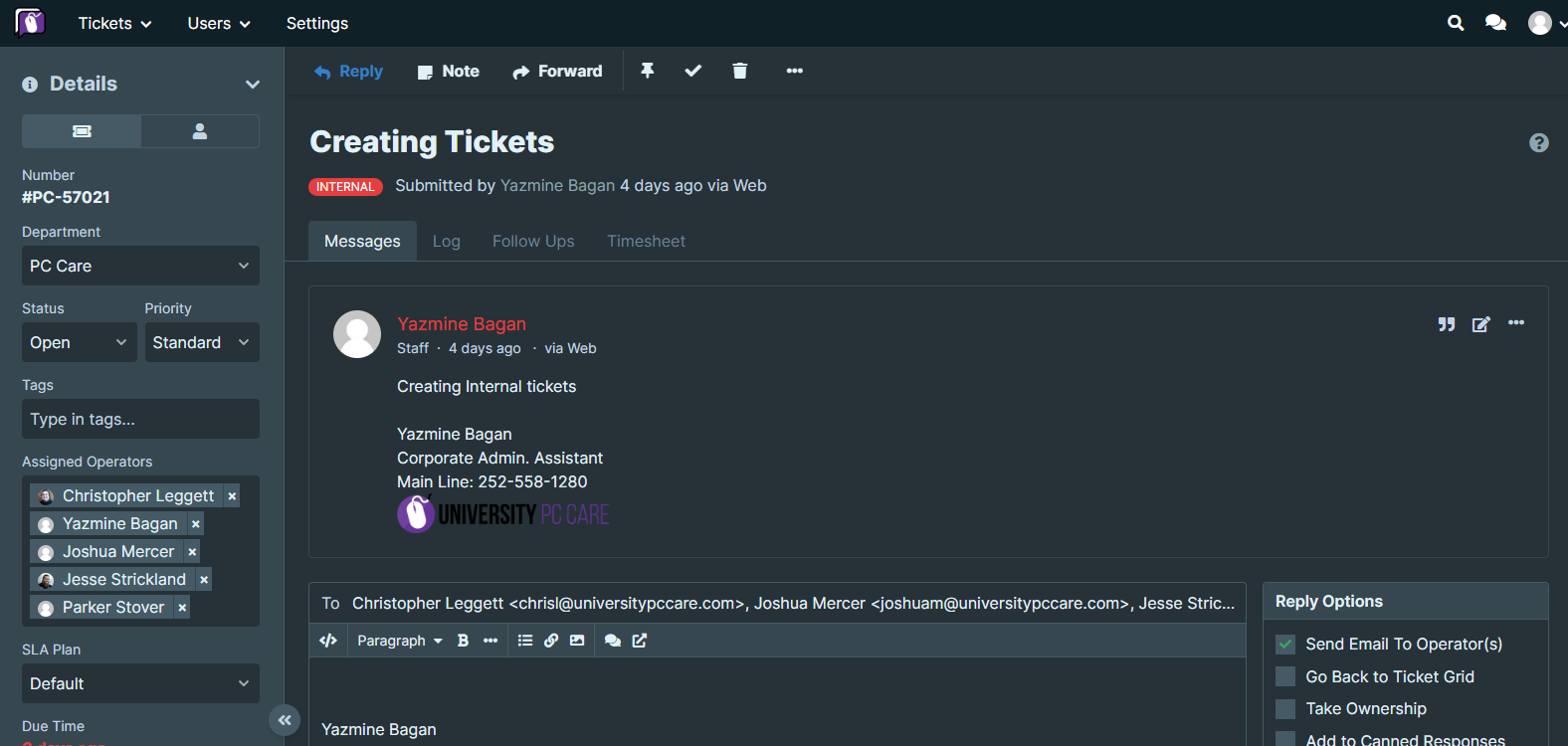
To change the department a ticket is in, click the dropdown menu under Department. Select the appropriate department that the ticket should be assigned to.
To assign a ticket to a specific technician, in the same left-hand column go to the section labeled Assigned Operators. Click inside the text field and begin typing the name of the person you wish to assign to the ticket. Names matching what you are typing will appear as available options.
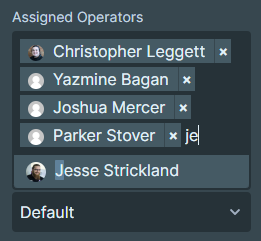
If the name you are typing does not appear as an available option to select, the person does not have access to the ticket system. You can request access for them from the administrator. In the meantime, screenshot or copy the message to the technician that should be reviewing the ticket and send it via Slack.