Manually Attaching Apple Memos
How to manually attach Apple Billing Memos to WOs
Manually Attaching Memos
When you reach the point of adding the Invoice/Debit/Credit number, if the Invoice ID continues to receive the message GSX Invoice not found you will need to close out this screen and move on to manually attach the memo to the WO. To complete these next steps, you will need to first download the memo attachment from the Apple Billing email.
Once you have this downloaded, return to the WO in PCRT and select the Attachments tab. Select the Add Attachment button. On the pop-up, enter the memo type and the Invoice/Debit/Credit number into the Title/Name field.
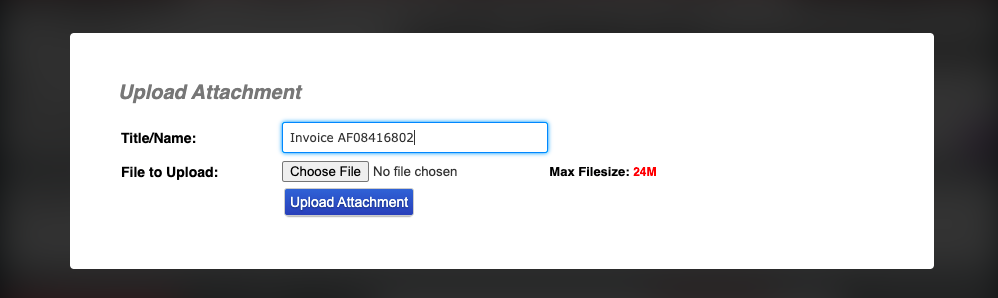
Click the Choose File button and select the file you downloaded from the Apple Billing email. When you see it listed as the file chosen, click the blue Upload Attachment button.
Similar to the integration, the page will refresh automatically. Going back to the Attachments tab you will now see the attachment listed. Click on the attachment to ensure it loads correctly.