Account & Training
This procedure details how to get started with Apple Certification Training via ATLAS.
Apple ID
The initial setup of your Apple ID will be handled by the account administrator. Follow the instructions provided to you for the first login and subsequent prompts on the site from Apple. You can manage your UPCC Apple ID by visiting https://appleid.apple.com/#!&page=signin
It is important to save your Recovery Key (pops up after initial login) for future use
You will use this Apple ID across the three main divisions of Apple’s Service Systems
- GSX: Global Service Exchange- looking up warranty, device, and parts information; creating and following up on repairs, searching and reviewing service guides and articles, acknowledging and shipping consignment parts, etc. To access GSX visit https://gsx2.apple.com/
- ATLAS: Apple Technical Learning Administration System- all training material and course assessments. To access ATLAS, visit https://atlaslms.apple.com/
- GCX: Global Certifications Exchange- displays all completed and in-progress certification assessments. To access GCX, visit https://certifications.apple.com/
You will need to sign in to each of these accounts *before *starting your ATLAS training so that your certifications register across each site.
GSX Startup
For a detailed user guide, search for OP2287. This article is updated periodically with the newest navigation tips and descriptions of tasks that can be completed in GSX as well as the best way to complete the tasks.
Atlas Setup
When you first log in to GSX there may be a prompt to create a Tech ID. If this is the case, follow the prompts to complete the creation of your Tech ID. If there is no prompt, follow the next steps.
- In the top navigation bar, click on Resources
- Hover your mouse of the left-hand column of the Resources page
- Scroll down to find “GSX Training”
- Click on “GSX Training”
The GSX Training link will take you into what is now called ATLAS. Here you will find Learning Tracks and other individual training modules used to become certified on specific devices. We require that all Local Techs be certified in all serviceable device types (MacBook, MacBook Pro, MacBook Air, iMac, Mac Pro, Mac Mini, and all iPhones) in order to maintain employment. Use this procedure as well as provided guides and service articles to complete all required training.
If you have not already been prompted to do so, there will be a prompt when entering ATLAS to create a Tech ID either via a required module or pop-up. Follow the instructions provided for completing the creation of your Tech ID.
Initial Certification Courses
A tentative start date will be scheduled two weeks out. During this time, you will be required to complete the following training course sections in ATLAS:
- Customer Service (15 courses)
- Safety (11 courses)
- Services (12 courses)
- Operations (17 to 31 courses)
Other certifications will be completed during your probationary period and will follow the articles in the next section.
Certification Articles
In order to provide the most up-to-date listing of necessary Learning Tracks and Courses that need to be completed in order to become an Apple Certified Technician please refer to the following articles in GSX.
OP2390- GSX Training Learning Track
These training modules will walk you through and teach you how to use Apple’s Global Service Exchange (GSX). This article is kept up to date with each innovation they introduce. Even after you have completed this training initially, it’s good to keep an eye on it for any updates. They will also announce updates via the Service News panel of the GSX Home page.
OP2403- AASP Onboarding training curriculum
This is based on your role type within the company. For example, Local Techs will need to select Technician, and Care Reps will need to select Apprentice. You are more than welcome to complete other learning tracks once your main role’s training has been completed. Use the Curriculum Path section of this article for a visual of the steps to complete your training.
LT6-004: AASP Onboarding Electives
This section shows you how to handle and process Consignment In-take/Return, Mail-in Repairs, and Loaner Phones. You can find this Learning Track by logging into ATLAS and selecting Learning Tracks in the navigation bar or you can use the link provided in the references section of this procedure.
OP1859- About Apple service certifications
Here you will find lists of links to ATLAS Learning Tracks needed for certain certifications. You can choose which order you get certified. We recommend just going down the lists as they are presented in this article. The article is updated with the release of new products so bookmark this article for future reference.
You do not need to worry about the “Technicians with existing certifications or ACiT and ACMT Certified Technicians” this was the previous model for becoming an Apple Certified Technician which is no longer in use.
GCX
Your certifications will be listed in this system once they are completed. GCX integrates into GSX to allow you to complete repairs and gain access to certain permissions in GSX. If you are already in GSX you can navigate to GCX by clicking on Settings in the top navigation bar. In the left-hand column select Certifications. Here you will see your certifications as they are in GCX without having to visit the GCX site. However, if there are certifications not listed here that you have completed, continue on to GCX by clicking “Apple Certification Tool'' at the bottom of the screen to verify that they are listed on that end. Certifications take up to 48 hours to sync between all three systems.
In GCX, you will be able to view your certifications as well as assessments that are currently in progress. In the Assessments section, you will be able to view courses that are available to you. Some courses listed are no longer available as they are from the previous format of getting certified.
Verifying Certification Completion
In order to verify that you have completed all the required certifications, do the following:
- Sign in to ATLAS
- Click on ‘Profile’ at the top of the screen
- Click on ‘History’ near the top of the screen
- You can either 'Select All’ or locate and select individual courses
- Then scroll to the bottom of the page, and click on ‘Download PDF’
- A PDF will download showing each course selected, the course code, and the date of completion.
- Forward the PDF to hr@universitypccare.com to have it attached to your HR File.
Continued Verification
To ensure you are keeping up to date with your Apple Training and required courses, you will be required to submit a screenshot of the My Progress section at the center of the ATLAS landing page to hr@universitypccare.com on a monthly basis. See the example below.
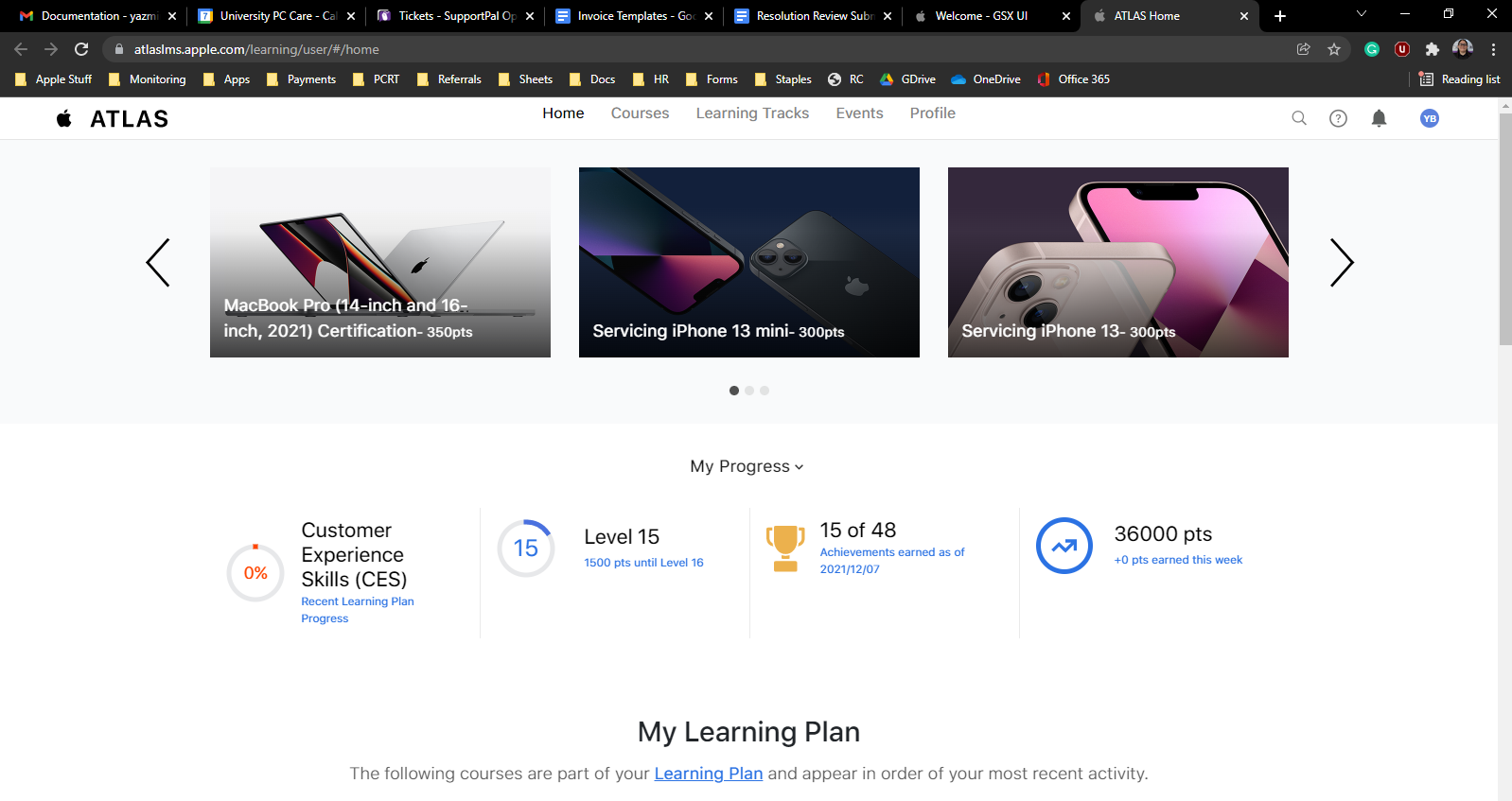
If you need assistance with submitting this proof of continued Apple Training, please contact the Corporate Administrator or Supervisor.
References
OP2287: GSX User Guide- Table of Contents
OP2390- GSX Training Learning Track
OP2403- AASP Onboarding Training Curriculum