Navigating SupportPal System
This article covers how to navigate Support Pal
Customers can reach out to us in a multitude of ways, the second most common method is emailing which goes into our ticketing system, SupportPal.
You will need access to SupportPal and Slack. If you currently do not have access to either program, please contact Admin. to request access to these programs.
Navigating SupportPal
Once you have access to SupportPal, sign in to the system. After logging in you will be taken to the landing page, similar to the one shown below:
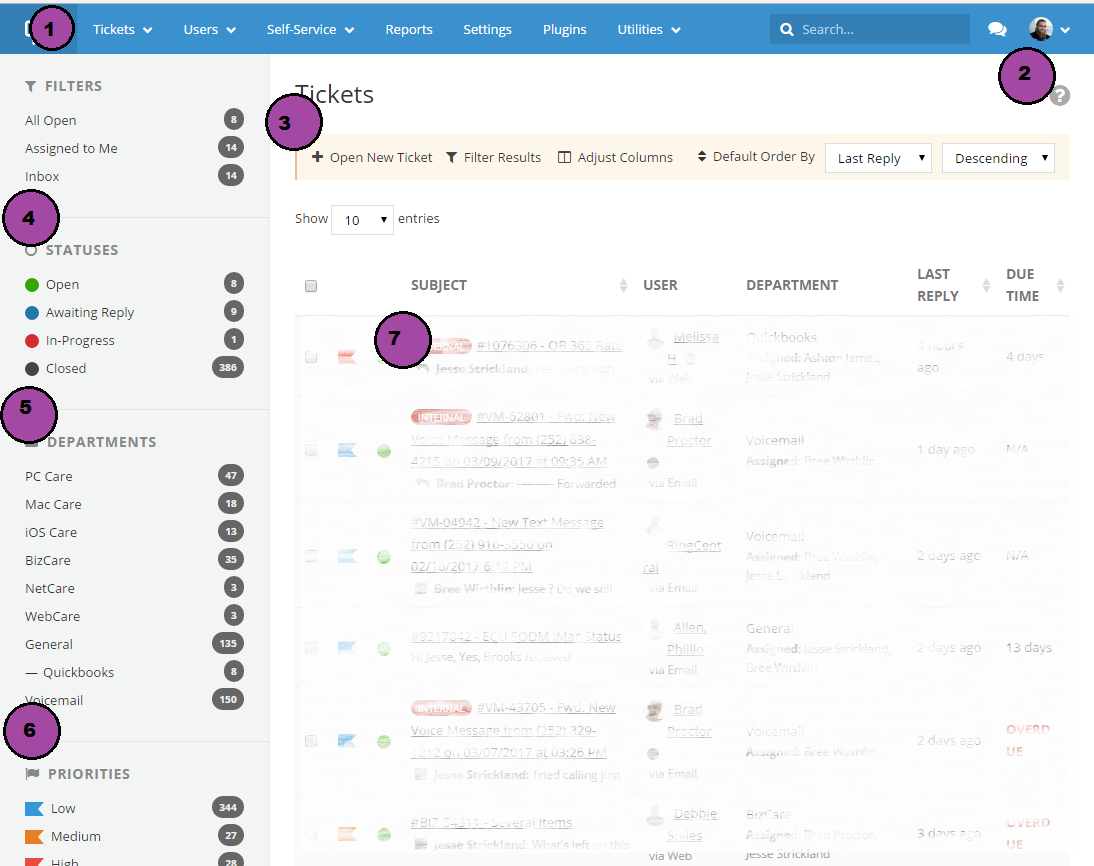
Starting at the top at #1 and work down:
- The header: Provides various navigation links to different sections of SupportPal.
- The user menu: Here you can logout and manage personal settings.
- Ticket Actions: Create new tickets or filter the current view to only show specific tickets.
- Statuses: A list of ticket statuses. Click on any status to show all tickets with the selected status.
- Departments: A list of departments you are in. Click on any department to show all tickets for that department.
- Priorities: A list of ticket priorities. Click on any priority to show all tickets with that priority.
- Ticket List: The list of tickets that fulfill the criteria based on the filters from numbers 3-6.