Reset a MacBook password
Customers will have issues where they are not able to get into their devices because they forgot the password. This article covers how to regain access in those events.
- Make sure that Find my Device is turned off and make sure that the device itself is powered off.
When the device has completely powered on press the power button and then immediately hold Command + R. (If your device has an M1 chip then just hold the power button until the display says going to the start menu). Once the device loads you will appear in Recovery Mode.
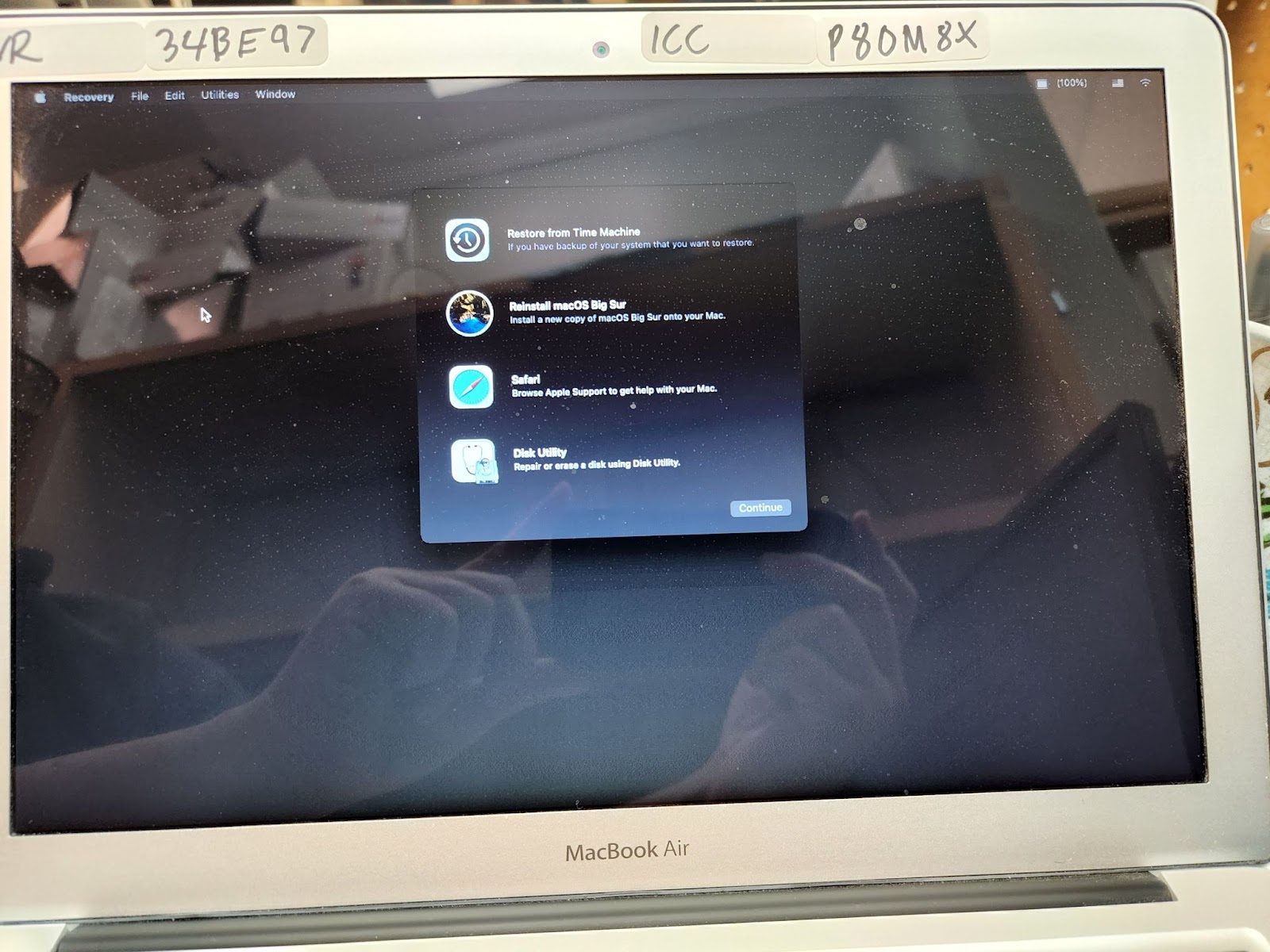
In the top left corner click on “Utilities”. That will open up a small menu. Click on “Terminal”. A small terminal window will appear.
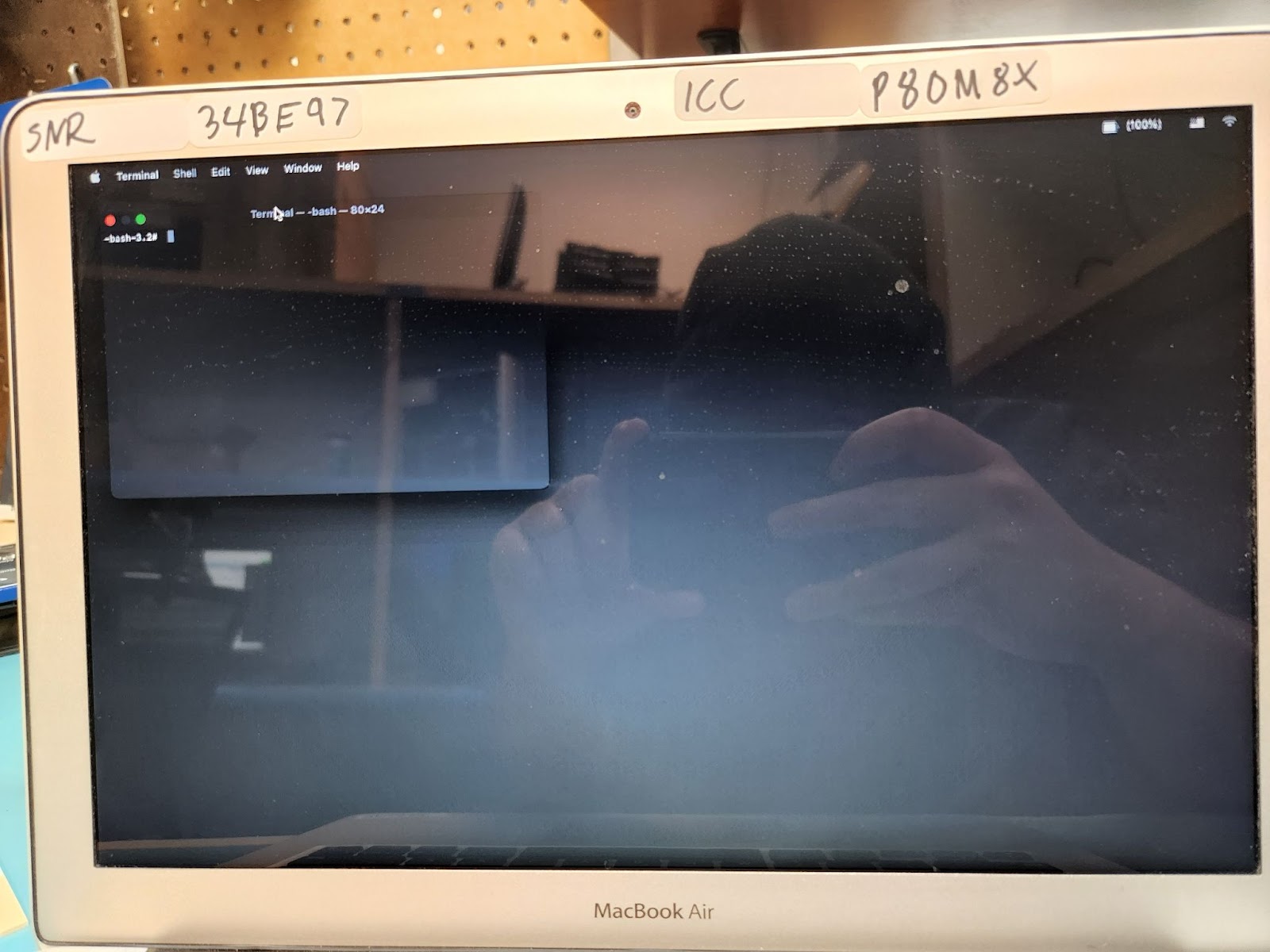
In the terminal window type in “resetpassword” (Make sure you type it in exactly as written) After that click enter and a new window will open called “Reset Password” It will show you all the users of the device. Click on which user you want to reset the password for.
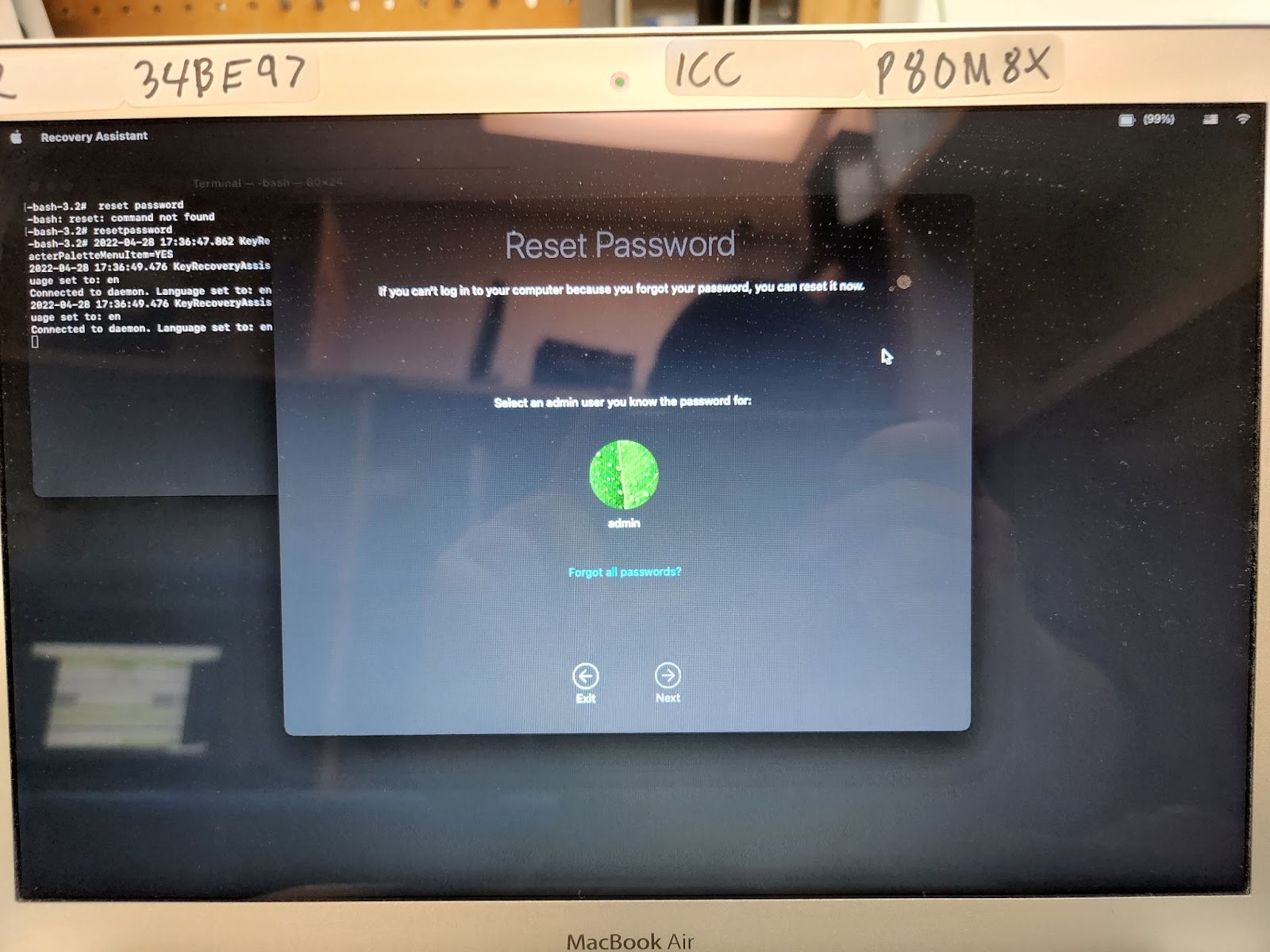
- It gives the option type in a new password. Type in the new password and be sure to record it in PCRT. Once you have typed in the new password press enter or continue. Then you should just need to restart your device and you are good to go. Before returning the device to the cx be sure to check and make sure that the password reset worked. If you click on a user and it asks you to enter the current password. Go to step 6.
- Look below the users to the link that says “Forgot all passwords?” and click on it. It will ask you to reset the password for all the users. Reset the passwords for every user and be sure to record it in PCRT. Once you are finished resetting the passwords the device will tell you that you can exit and restart the computer. Exit by clicking on the Apple logo in the top left corner and then clicking “Restart”
- Once the device restarts, verify that the password reset worked. Once you have verified get the device ready for pickup and call the cx