Overdue Invoices
How and when to follow up on invoices sent to customers.
Invoices generated in PCRT need to be followed up on if they remain unpaid after the ten (10) day payment period has been reached. You will be emailing, calling and creating formal letters on company letterhead regarding overdue invoices.
How to follow up via Email
When invoices are created in PCRT, the customer will have ten (10) days to pay the invoice before late fees begin to accrue. Information on how the fees accrue is listed at the bottom of the invoice if you would like to review that.
The first reminder should be sent between the five (5) and nine (9) day mark. The reminder will be simply forwarding another emailed copy of the invoice using PCRT. There are two easy ways you can send the invoice reminders.
Multi-select
Go to the Invoices Page in PCRT. You can select multiple invoices to email at once by checking the box next to the invoice number. See image below for how the Invoice page looks.

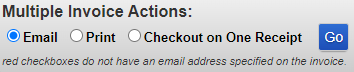
Note: if you see a red background in the checkbox section as shown below
there is no email on file for that invoice. You will need to mail the invoices. Jump to How to follow up via Mail to proceed. (If the customer is listed as Cypress Glen Retirement Community, go to Procedure- Billing: Cypress Glen Invoicing to process.

After you’ve selected the invoice(s) you would like to email, scroll down to the bottom of the page and click the radio button labeled Email the the blue Go button to send the invoice emails.
You will briefly see a page that says the email has been sent and the email it was sent to for each invoice you selected.
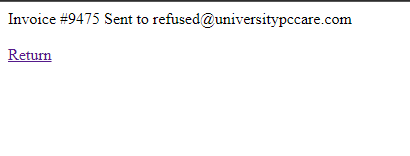
The page will continue to load back to the Invoices page when they have been sent.
Individually Emailing
From Invoices Page
On the same Invoice page, you can individually email the invoices or you can email from the work order the invoice was generated from. If you email from the Invoices page, on the same line the invoice information is on you will see nine (9) action buttons to the right.
In the image above, you will see a green check mark on the Email button. This is an indicator that the invoice has previously been emailed. You can click the Email button to send the notice again. The screen will change to show the email address the invoice will be sent to, as shown below.
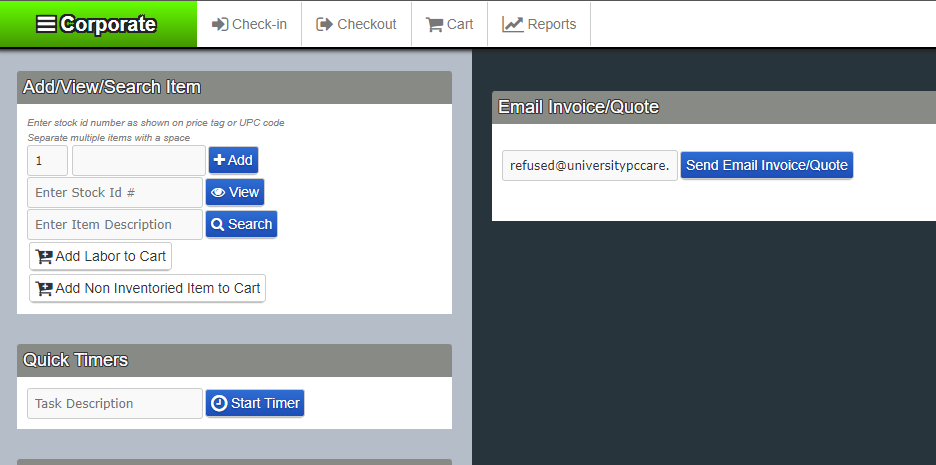
Click the blue button labeled *Send Email Invoice/Quote. *The page will load briefly to the sent page showing you that the invoice email has been sent and the email address it has been sent to.
The page will continue to load back to the Invoice page after it has been sent.
From Work Order
Do not go out of your way to find the work order, you should only be emailing a follow up invoice email from the invoices page. If you happen to already have the Work Order open, go to the Repair Cart section of the invoice.
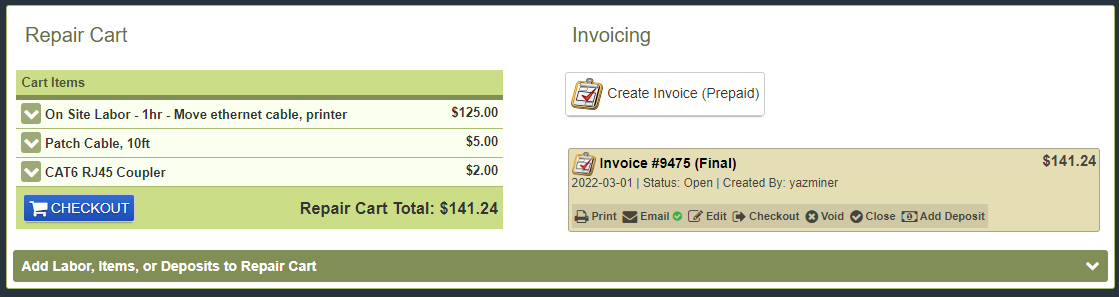
The invoice is located in the bottom right of this section. Similarly to when the invoices are listed on the Invoice page, you will see multiple options in the invoice section. A close up of this section is below.

As you can see, as you saw before, there is a green check mark on the Email *button showing that the invoice has been emailed previously. Click on the *Email button to send the invoice email again. You will load into the same page as you did with emailing from the Invoices page.
Click the blue button labeled *Send Email Invoice/Quote. *The page will load briefly to the sent page showing you that the invoice email has been sent and the email address it has been sent to.
The page will continue to load back to the Invoice page after it has been sent.
How to follow up via Mail
Once a month, we do a mass mailing of all open invoices. As you’ve seen, the Invoices page is separated into two (2) sections: Overdue Invoices - Days Overdue: (+21) and Current Open Invoices. The images below so the headings and color coding.

Items listed in the Overdue section will require an Overdue Invoice Letter to accompany a copy of the invoice itself. There are a few templates you can use based on what has been invoiced.
- Overdue Invoice Letterhead Template- Recurring Services
- Overdue Invoice Letterhead Template- General
Choose the appropriate letterhead template based on the items being billed on the invoice. Take your time and fill out the template thoroughly. You can add new rows to the table on the document for customers that have multiple overdue invoices to reduce the amount of paper, envelopes and stamps needed for the mailing.
To print the invoices, go to the Invoices page of PCRT. You will have to go down the list one by one clicking the Print button located the the right of the invoice details.
The image below is zoomed in to view of the Actions portion of the image above.
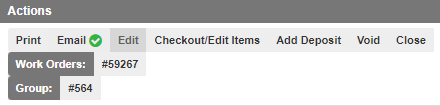
You will then be taken to the print page. Click Print from the options available.
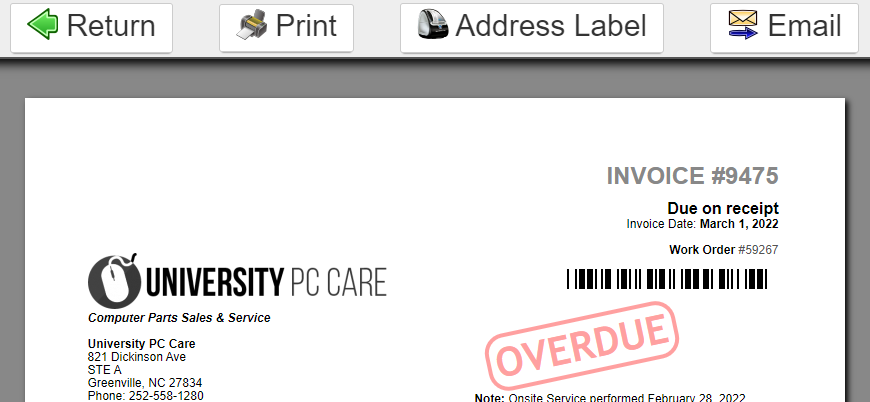
Stay on this page after the invoice has been printed. If the invoice is overdue, fill out the letterhead using the information on this print page then print out the letterhead at this time as well.
Lastly before closing out this print page, copy and paste the address from the invoice print page, enter it onto the Envelope Template. Make sure to put the envelope into the printer prior to printing the envelope. Most printers will have a feed tray you can use to put the envelope on to print. DO NOT put the envelope into the printer prior to being ready to print the envelope. Other documents being printed will pull from the feed tray before the drawers which will waste envelopes.
Move on to Additional Overdue Invoice Steps before packing these envelopes as detailed next.
Trifold the documents to fit into the envelopes. The envelopes are self-sealing. Peel the protective strip from the envelope and fold over to seal it. Place a stamp on the front in the top right corner leaving a small amount of space at the top and right edge to avoid it folding over the edges.
Place the envelope in the designated Outgoing Mail location. Ensure mailing is taken the same or following day.
Additional Overdue Invoice Steps
Prior to packing the envelopes for overdue invoices, there are two (2) additional steps to take. Take the documents and scan them into Evernote. You will need access to our Evernote account in order to scan to this cloud based system. Reach out to the administrator if you do not have access.
By default, the documents will scan to the To Be Sorted folder. Later, after you’ve completed all the scanning you will need to organize the files in Evernote. Use Procedure- Evernote File Management for how to manage the documents.
After scanning, make a note on the invoice in PCRT. To do this, you will go to the invoice page and locate the invoice you need to make the note on. Select the Edit button out of the available actions you can take.
The _Edit Invoice_ pop-up will appear. You will make your note in the Private Notes section.
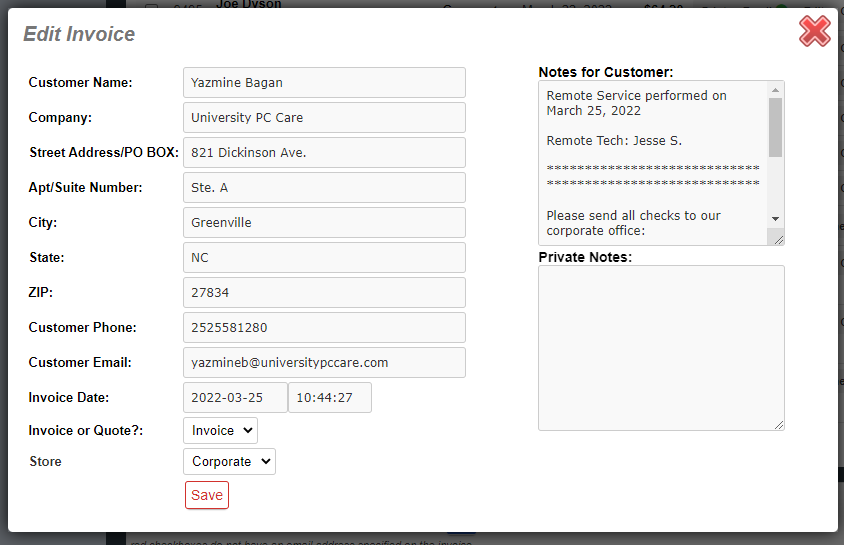
The note will state that a hardcopy overdue letter was sent with the date it was created on as well as your initials. For example: 08/22/22- overdue letter mailed- JS
Click the red outlined Save button at the bottom of the pop-up. The pop-up will close and you will see the note under the customer information.

After you’ve made the note, you can proceed with following the mailing instructions for the documents.
References
Procedure- Billing: Cypress Glen Invoicing
Overdue Invoice Letterhead Template- Recurring Services