How to sign up for a Care Plan
Signing customers up for a Care Plan is a regular part of the checkout process. This outlines how to properly sign up customers for a Care Plan.
- On your device, go to universitypccare.com
On the menu banner at the top, navigate to Home & Personal → PC → PC Care. On mobile devices or smaller screens, you will first need to click on “Menu” to reveal the full menu.
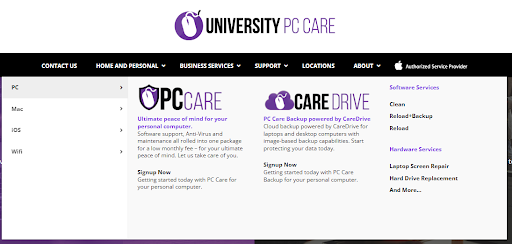
Click the “Sign Up Now” button for the Care Plan the customer is getting
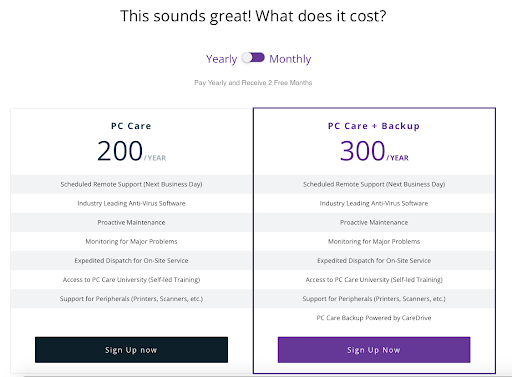
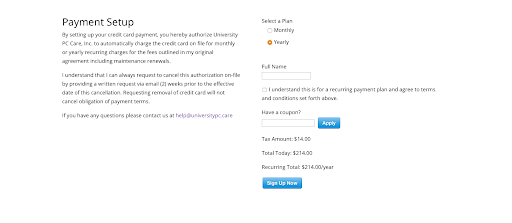
- Scroll down and click on Yearly, then enter the customers full name.
- Make it clear to the customer that this is a recurring payment that will automatically renew yearly until they choose to cancel. Reminder emails are sent out to the customer a couple of weeks in advance of their renewal date.
Click “Sign Up Now”
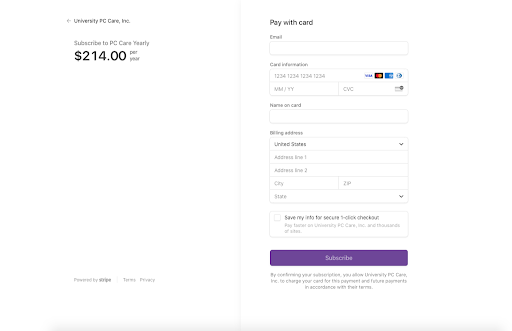
Fill in the customers card information and click “Subscribe”. DO NOT save their card information
- In PCRT, open the customer’s Work Order.
- In the Repair Cart → Quick Labor → Care/365 section, choose the appropriate Care Plan (Mac or PC) to add it to the cart
- With the Care Plan subscription in the cart, click Checkout.
Click on “Stripe Prepaid” as the payment option. Important: Do not click “Stripe”.
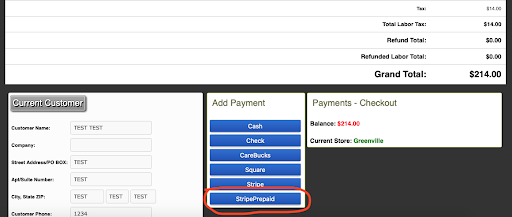
Make sure the amount to pay is $214 and then fill in the rest of the customers card information, and the Confirmation Number from purchasing the Care Plan on our website.
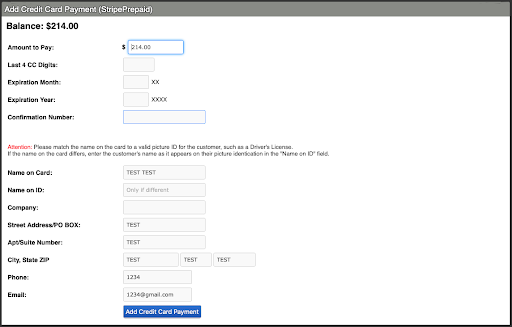
- Click “Add Credit Card Payment”
- Proceed with the checkout process as normal
If a customer wants to pay cash
Typically we do not want to take cash for subscriptions as it is a reoccuring payment. That being said, some customer will want to pay for their subcription, or re-subcription with cash.
If they want to sign up a new Care Plan
- Find the Work Order for the computer they want their care plan on.
- If the WO is still open add the Care Plan to the cart and let them check out like normal.
- If the WO is closed go under the History tab and select "Check in this device now".
- The problem discription should be something like "The customer wants to purchase a Care Plan", from there you can add the Care Plan charge to the cart and check the out.
Just make sure to message the Subscription Manager once this has been done.