Cycle Counts and Audits
This procedure will detail how to perform and document our Apple-required monthly Cycle Counts and yearly Audits.
Procedure
To be successful in completing the counts, adhere to the following:
- Stick to the cycle count schedule set by management. If there are any delays report same so accommodations can be made.
- Fire Tower- 1st Tuesday of each month
- Glenburnie- 1st Monday of each month
- Begin cycle count after the report has refreshed and before any repairs are started for the day.
- Do not create any repairs requiring consigned inventory or acknowledge any incoming consignment packages.
- Close off the Apple Inventory area and do not interrupt the person(s) performing the count.
- Do not add or remove Apple Inventory from the area before and while the count is in progress.
- Do not create repairs using consignment parts until after the count is completed.
- Make sure to email the appropriate contact located in the Contact section of this procedure when the cycle count is completed.
Preparing for the Cycle Count
The day before the cycle count it is important to get all consignment acknowledgments checked into the system and all RMAs (Consignment Returns) done. Review Procedure- Consignment Return, Procedure- Apple Initiated RMAs, and Procedure- Consignment Acknowledgement for details on how to perform these tasks.
Do not acknowledge or return any consigned Apple Inventory while the count is in progress.
Ensure Microsoft Excel is installed on the computer or tablet you are performing the cycle count on. If you do not have Microsoft Excel, contact your supervisor to get access to a copy of this program.
Reports submitted not done using Microsoft Excel will cause the submission to automatically be voided.
Cycle Count Day
Prior to beginning the count, you will need to download the Cycle Report showing what we are supposed to have on hand. Go to the Consignment section of GSX. Then select Consignment Stock under the reports section to the left of the screen.
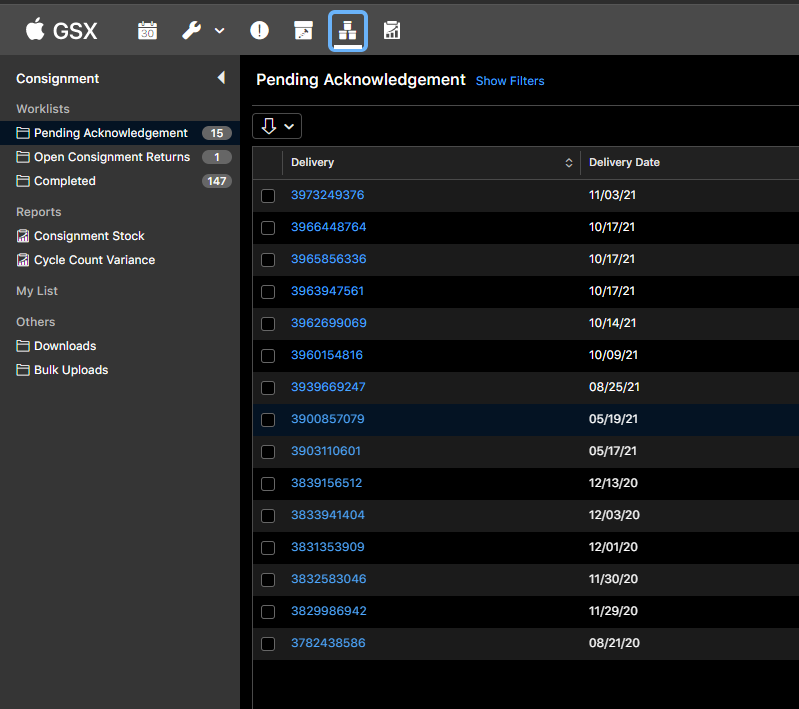
In the top-left corner, you will see a drop-down menu under Ship-To, here you will need to select the correct Ship-To location number for your store.
- 1909 E. Fire Tower Road is 0000706844
- 2117 S. Glenburnie Road is 0001109598
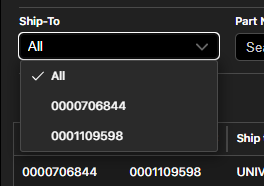
You will need to make sure you select the correct store number and submit the report for that store only, submitting the wrong report for the incorrect store can lead to audit failure and fees.
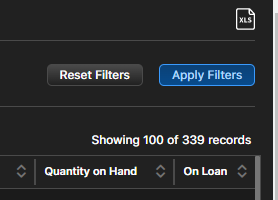
Click the blue Apply Filter button to the right to view only the selected Ship-To stock report. In the same location, higher up in the right corner, you will see an Excel icon that shows a sheet of paper with a folded corner labeled XLS. Click this icon to download the Consignment Stock report.
Open the file once it has been downloaded. If it opens in _Protected View_ click to Enable Editing. The file should look similar to the image below based on default Microsoft Excel settings.
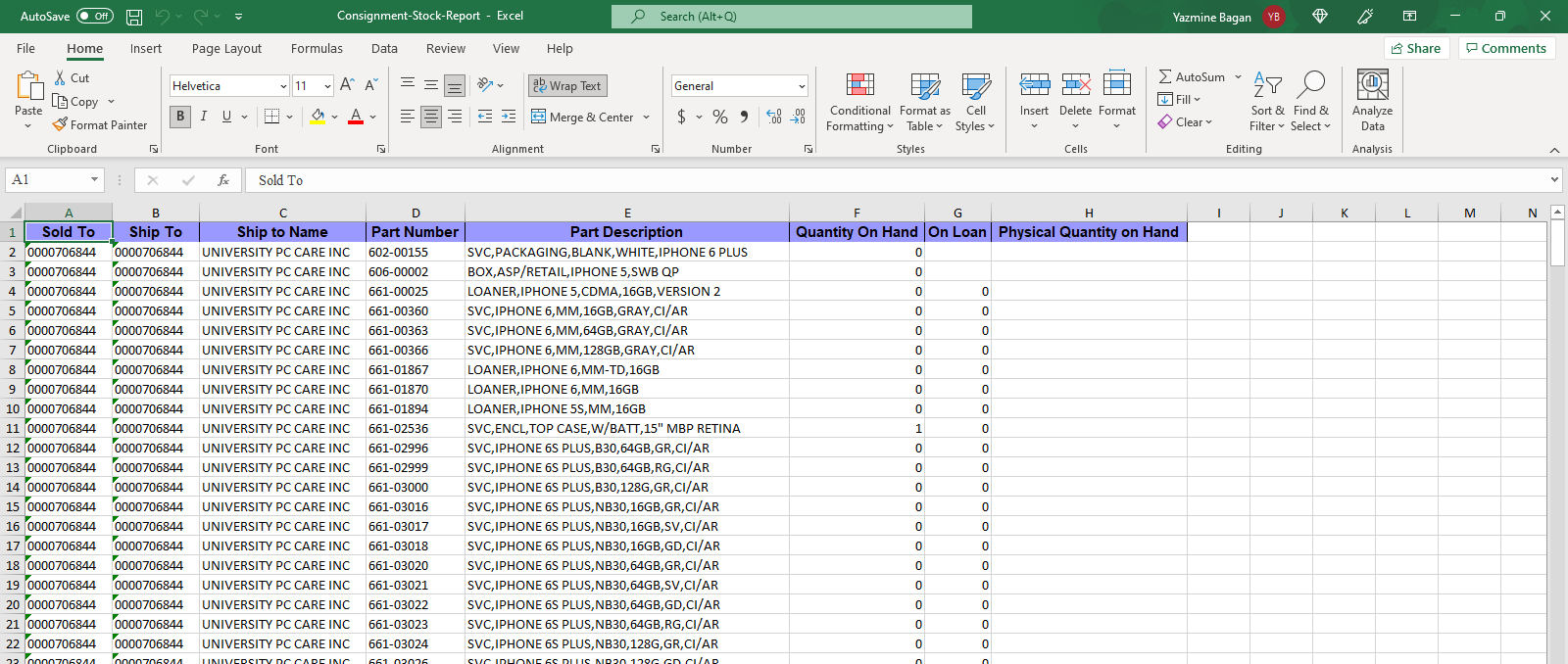
If the file view is too large for your screen, adjust the zoom and hide the following columns: Sold-To, Ship-To, Ship-to Name. This will leave the document looking similar to the image below.
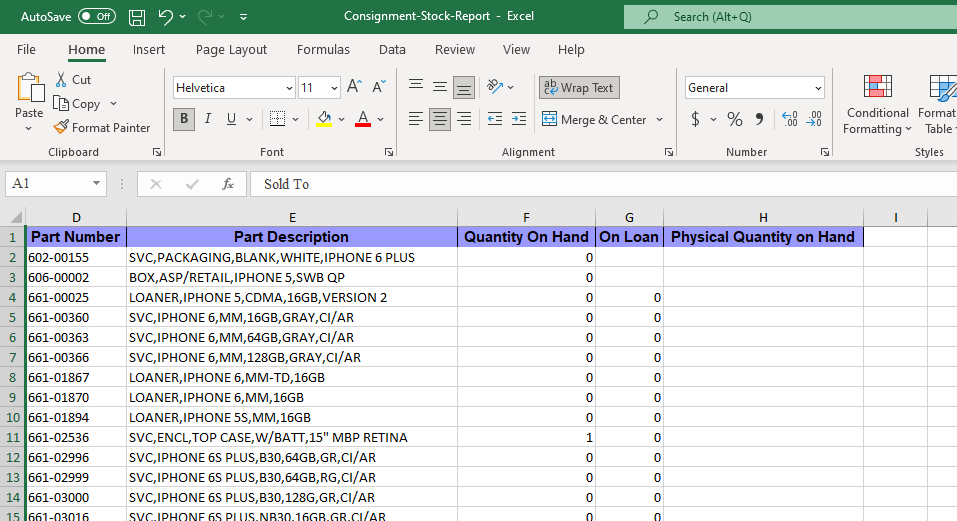
The only columns you will be editing are the Physical Quantity on Hand column located on the Consignment Stock Info page (main sheet of Excel booklet) and the Serial Number column which is located on the SN Collection page (second sheet of Excel booklet).
To avoid any errors with Serial Numbers, use one of the scanners to enter in the Serial Number when requested. You will need to provide serial numbers for all WUR, Rear housing, and Loaner phones.
Thoroughly go through the Apple Owned Inventory and mark what we have on hand in the Physical Quantity on Hand column and enter all serial numbers on the SN Collection sheet.
When you have completed the count and entered in the required serial numbers you will save a copy using the following title scheme: MMDDYYY_shipto_#########
Example: 12142021_shipto_0000706844
Monthly Cycle Counts
When you have completed the cycle count, upload the copy you just made to the Cycle Counts folder in our shared GoogleDrive, filing it in the correct subfolder for your store. If you are unable to access this folder please email your supervisor or Corporate Administrator to provide you with access.
Finally, email a copy of the completed Cycle Count to the Corporate Team with the subject line “Cycle Count- Date- Store” - Example: Cycle Count- Dec. 12th- Fire Tower
Cycle Count Audits
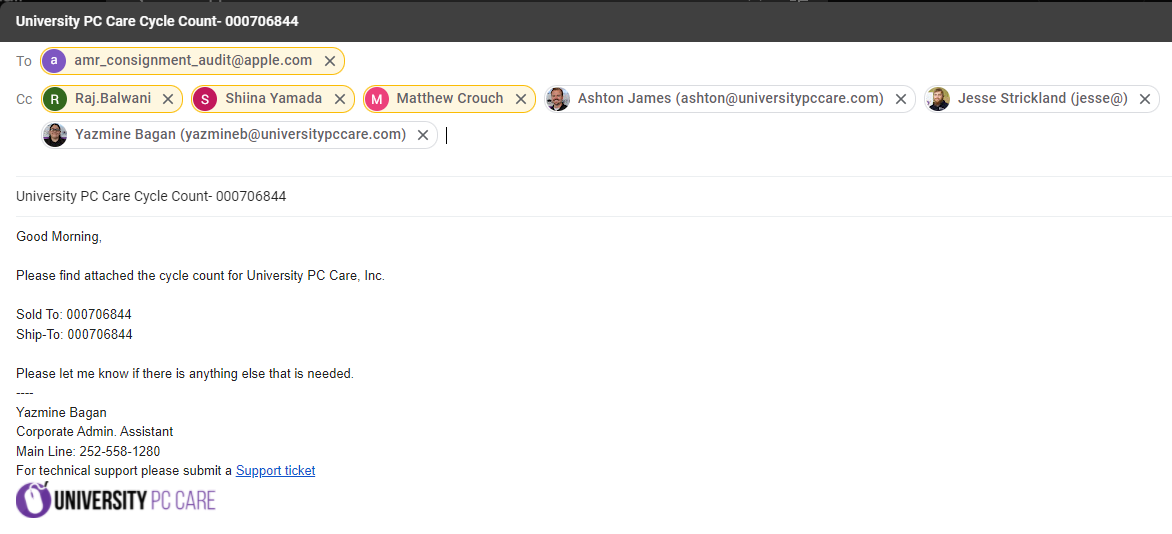
For the yearly audits, you will need to email your saved copy to the Audit Team (should be the TO field of the email) as well as the Apple Management Team and Corporate Team (should be the CC field of the email) with a short message as to what the email is regarding.
The Subject line of the email should be in Apple’s format: (sold-to name)Cycle Count-(ship-to #)
- Example: University PC Care Cycle Count- 0000706844
Your email should look similar to the example below.
Monitor your email periodically after sending the Cycle Count email as the Audit Team will email you once the audit is complete and if there are any discrepancies. Once you get the all-clear from the Audit Team the store may proceed with repairs as normal. If you are notified of discrepancies, these will need to be corrected and resolved before the store can continue with repairs that require consignment parts.
Contact your supervisor and corporate team for any questions or issues that may arise with the Cycle Count.
Discrepancies
If you need to dispute a discrepancy with your audit results, please open a GSX Help > Consignment > Order - escalation and provide the following information:
- Invoice number/Memo
- Part Number
- Quantities Apple is reporting for part number
- Physical Quantities you have for part number
- Number of parts being disputed
- Serial numbers (if applicable)
Make sure to create a Work Order under the store’s master asset to track the details of the escalation, invoices/debits/credits we may receive, and all relevant details regarding the discrepancy in the count.
Contacts
Audit Team
Apple Regional Submission: AMR_Consignment_Audit@apple.com
Apple Management Team
Raj Balwani, Great Lakes Field Services Manager: raj.balwani@apple.com
Shiina Yamada, CSS AMR Support: syamada@apple.com
Corporate Team
Ashton James, Owner UPCC: ashton@universitypccare.com
Jesse Strickland, VP UPCC: jesse@universitypccare.com
Zachary Todd, Manager: zact@universitypccare.com
References
OP969- SERVICE: Apple parts consignment: Cycle count process
Consignment Inventory Cycle (Video)
OP2217- Cycle Count Process