Modifying Invoices
How to modify invoices.
Modifying Invoices
Editing Customer Information & Notes
Should the need arise to change customer information after an invoice has been issued, you can do so by locating the invoice on the Invoice page of PCRT. Once you’ve located the invoice, click Edit from the available options.

The Edit Invoice pop-up will appear. You can adjust any of the customer’s information as needed. Before you click Save, enter notes into the Private Notes textfield. It can be as simple as “3/25/2022- Updated cx information- YMB”. The notes must be dated and include your initials as a way to create a timeline of events.
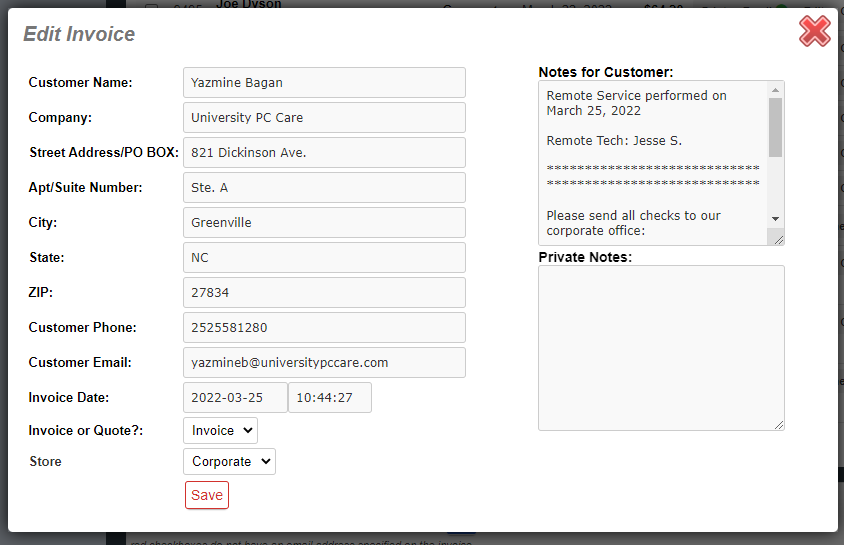
After you save, your note will now appear underneath the customer name. You can reprint and email the invoice to the customer with the edits you’ve made.

Editing Invoice Items
Similar to how you would edit customer information on an invoice, you will locate the invoice on the Invoice page of PCRT. From the options available, click Checkout/Edit Items.
You will be taken to the Current Cart page of PCRT which will now be filled with the items and information of the invoice. To Edit the existing items in the cart, click on the arrow to the left of the item description. A few options will appear that you can use to edit the item.

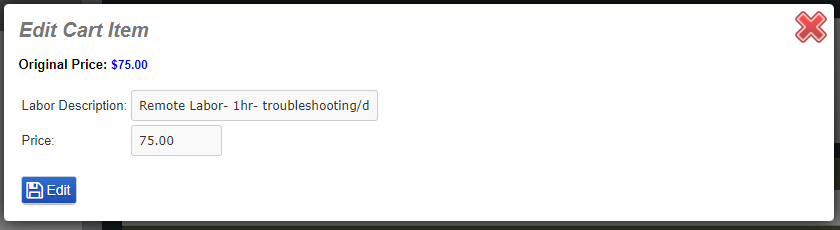
To Edit description and cost, click Edit. An Edit Cart Item pop-up will appear. Make the changes that are need then click the blue Edit button to save your changes.
To delete the item from the invoice, click Remove Item. To change the tax amount, click the red drop-down arrow that lists different counties and tax exempt. Select whichever fits.
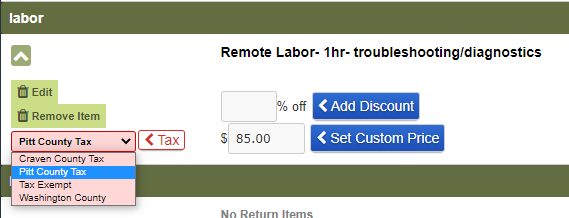
To add a discount, enter the percentage off into the % off text field. You can also set a customer price by changing the cost in the text field next to the Set Custom Price button. When it has been changed you will see an adjustment of the item in the cart.

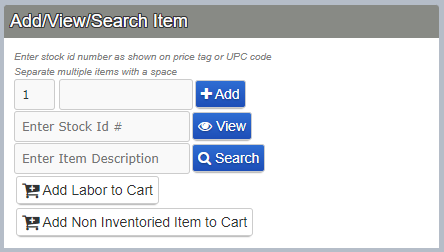
To add new items into the invoice, simply begin to add items as you would a normal cart. Use the left-hand column to add inventory items, labor or non-inventoried items.
After you’ve added or corrected items in the cart, scroll down to ensure none of the Current Customer information has been changed. If it has, correct it and click the blue Save button. Below this area you will find additional options for how to handle the invoice. Click Save Invoice # (the number will change based on the invoice you’re editing).

The Create/Save Invoice/Quote pop-up will appear. You will need to add the notes as you did previously. In addition to the previous notes that were on the invoice, you will need to add a new section that states the changes that were made. Before saving, add a private note recording that changes were made, similar to how you would when updating customer information.
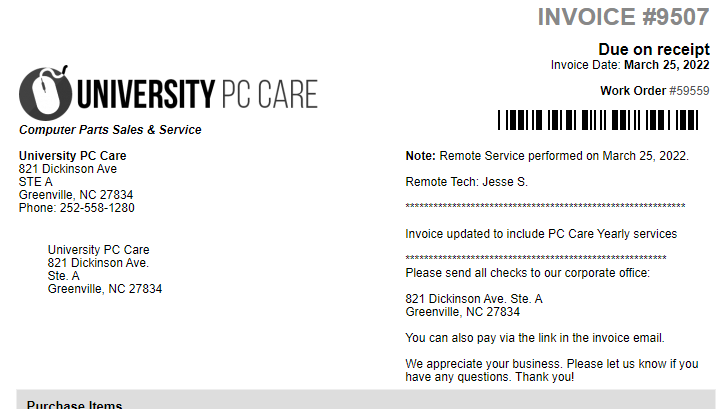
See the image below for an example of how the invoice will look after making appropriate notes.
If the invoice does not have any errors, print and email the invoice.