Accessing the Data Server
Accessing the data server is an important part of setting up and handling software work.
Accessing on a Mac - Method 1
The computer should always be connected to ethernet while accessing the data server.
- Open Finder.
Click on “Data Server” under Locations.
- If it does not immediately ask for the password, click on “Connect As…”
The credentials for login are.
- Undername: upcc
- Password: ccpu
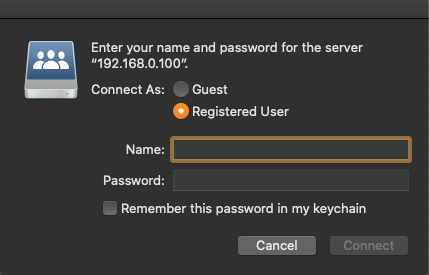
- Click “Connect”.
Accessing on a Mac - Method 2
The computer should always be connected to ethernet while accessing the data server.
- Open Finder.
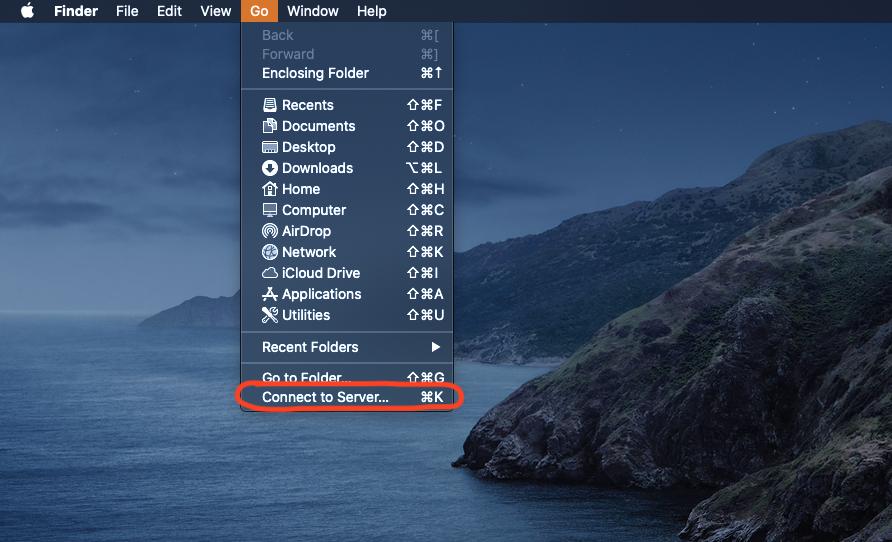
Click on “Go” on the top menu bar > “Connect to Server…”
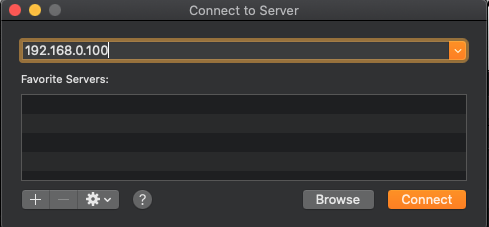
Type in the ip address “192.168.0.100” > Click “Connect”
The credentials for login are.
- Undername: upcc
- Password: ccpu
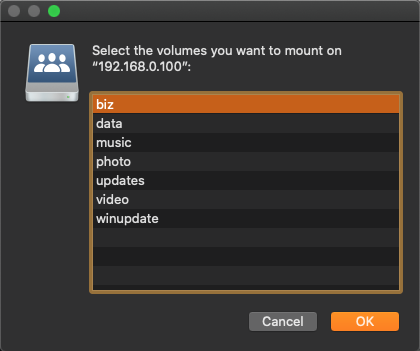
- Click Connect.
- Double click on the folder you want to access.
Accessing on a PC
The computer should always be connected to ethernet while accessing the data server.
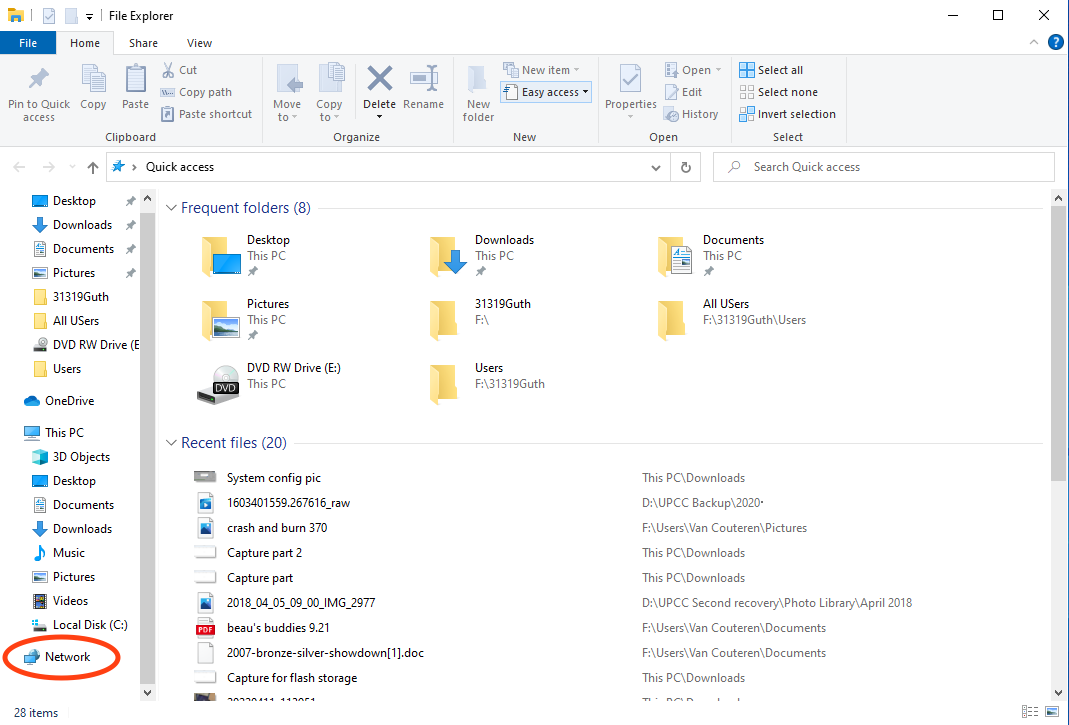
- Open File Explorer
Click on “Network”
If it asks, click on “Network discovery is turned off. Network computers and devices are not visible. Click to change”
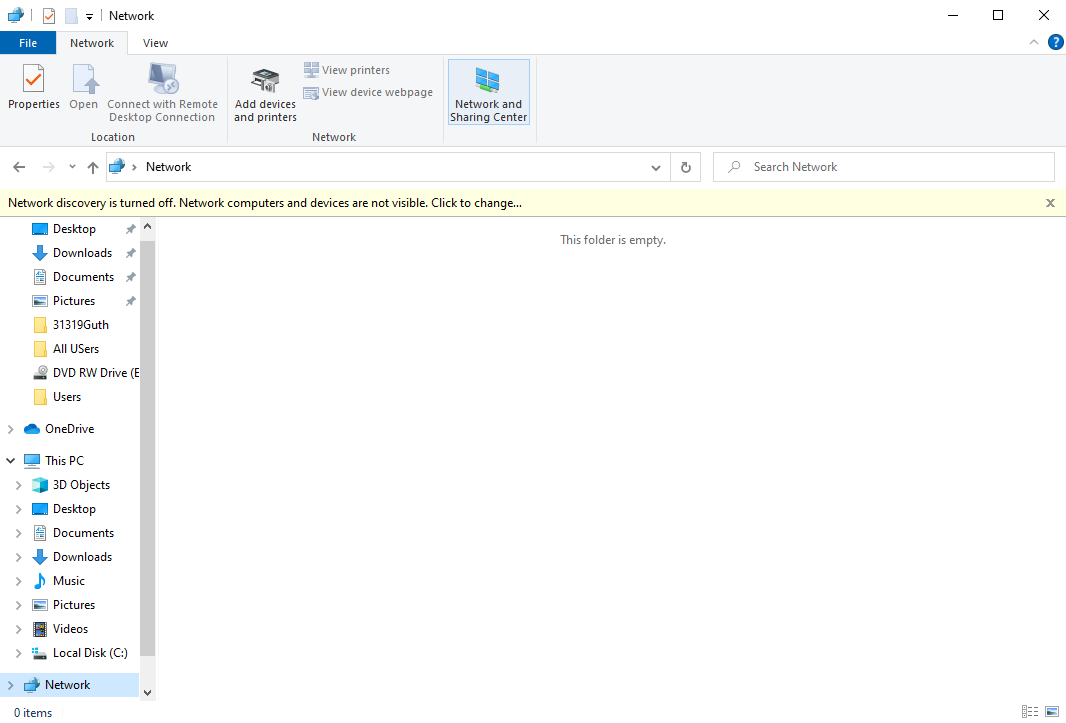
- When the pop up window appears click on “Yes, turn on network discovery and file sharing for all public networks”
Double click on the address bar and type in the ip address “\192.168.0.100\” > Hit enter.
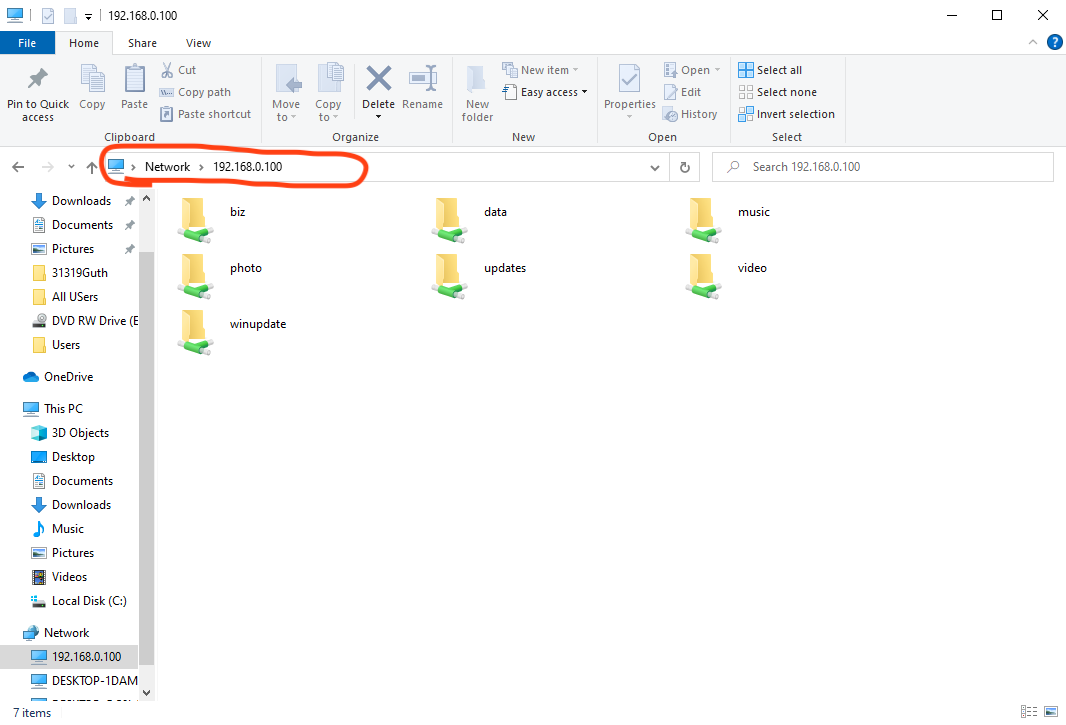
- The credentials for login are.
- Undername: upcc
- Password: ccpu