Renewing Subs
This article covers how to maintain subscriptions after creation and setup.
You will need to have access to Invoices, Stripe and Subscriptions in order to proceed with maintenance.
Renewing Subscriptions
Most subscriptions have been moved to auto-renewal via Stripe. There are still subscriptions that are grandfathered into PCRT Recurring Invoices. Below you will find instructions on how to manually renew subscriptions.
Renewing Disconnected Stripe Subscriptions
When changes are made to the subscription directly in Stripe, the sync with PCRT may become disconnected. In this case you can create a new Stripe subscription and relink to PCRT as if you were creating a new subscription. See Procedure- Linking Subscriptions for more information.
Renewing Recurring Invoice Subscriptions
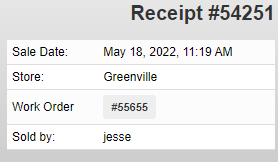
Once an invoice has been paid (review Procedure - Invoices and Quotes for Closing Invoices) a receipt will be generated. Copy and paste the receipt number located in the top right corner of the screen.
Locate the subscription you wish to renew from the Subscriptions Page of PCRT using the search bar.
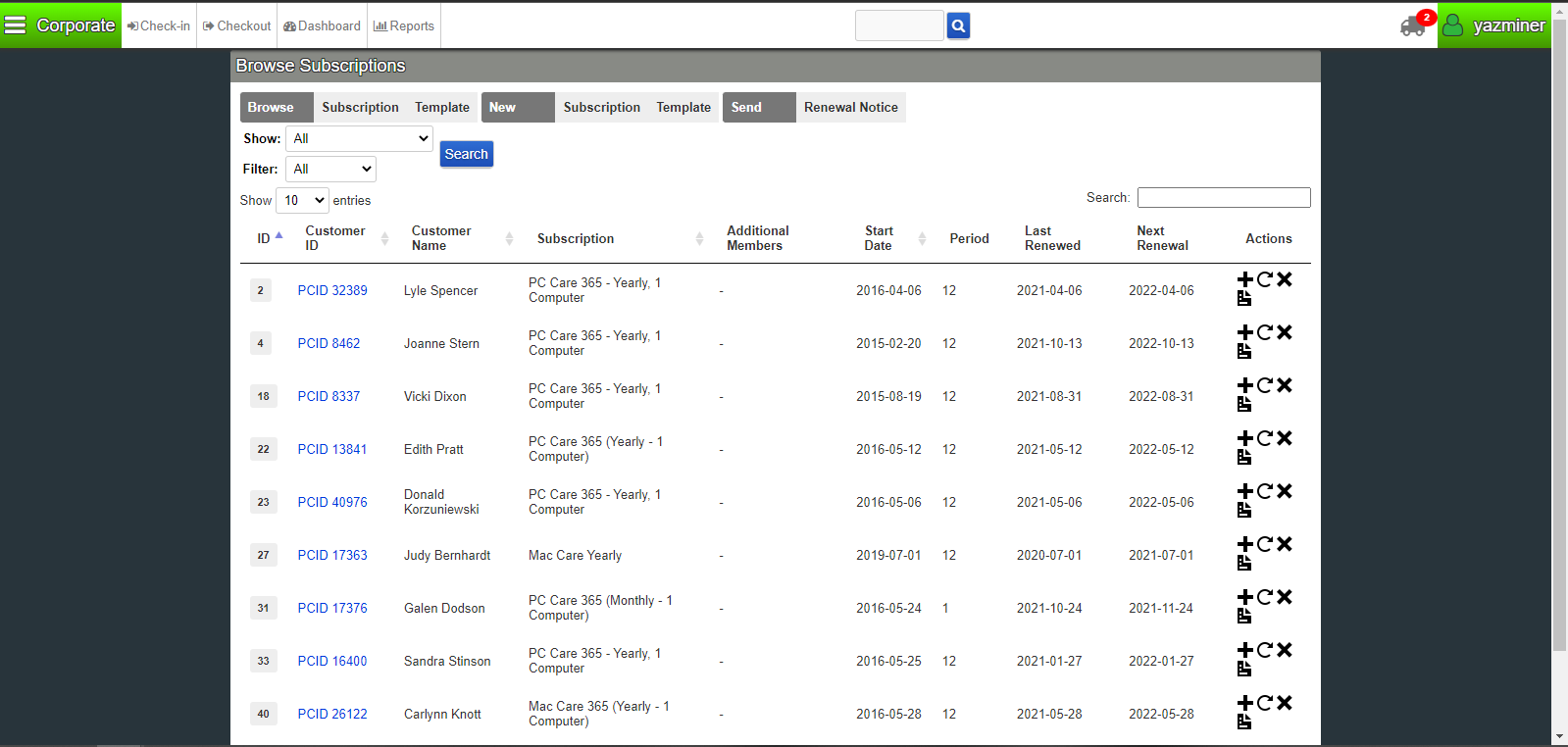
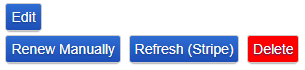
After finding the subscription, click to view the Subscription History. From there, scroll down to the blue buttons. Click on the button labeled, Renew Manually.
On the Renew Subscription Manually screen you will change the renewal date in accordance with the current renewal period.
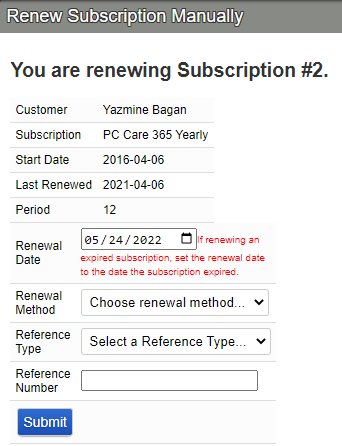
In the Renewal Method select the appropriate option from the dropdown menu. Select the appropriate Reference Type from the dropdown menu. After that enter the Receipt # or Stripe ID into the Reference Number textfield.
Once you’ve adjusted the information, click the blue Submit button.
The subscription will now be renewed and will show the current renewal period.