Processing Payroll
This article covers how to process payroll while tracking Paid Time Off (PTO), Commissions and reimbursements.
Payroll is run bi-weekly on Mondays for direct deposit on the following Friday. In the event a holiday falls on a Monday, payroll will need to run on the next day.
To help keep track of Payroll hours, commissions, PTO and reimbursements use the Payroll Hours & Commissions Template and PTO Calculations Template. Make copies of these spreadsheets to your GoogleDrive so you can edit them. You will need access to the PCRT Admin page. Use the link provided or see the following steps on how to get to the admin page. You will also need to be part of the HR Tickets group of SupportPal to view PTO requests and Time Corrections.
Preparing Spreadsheets
Locate the HR: Payroll Hours & Commissions Template and HR: PTO Calculations Template in the company GoogleDrive. Make copies of these templates to your work GoogleDrive so you can edit them.
To start off, edit the employee names to the current staff members. Add or remove rows as needed on both spreadsheets. You will continue to use these same spreadsheets for each payroll period adding new sheets to the workbook for the year. Create a new spreadsheet for each year.
Work on both sheets that suit your workflow. A recommendation would be to work on both sheets weekly to keep up with hours, PTO approvals and additional commissions earned outside of the PCRT tracked commissions, such as DriveSavers.
PTO Calculations Template
For this template, rename the document with a dash and the year. For Example: _PTO Calculations- 2022._
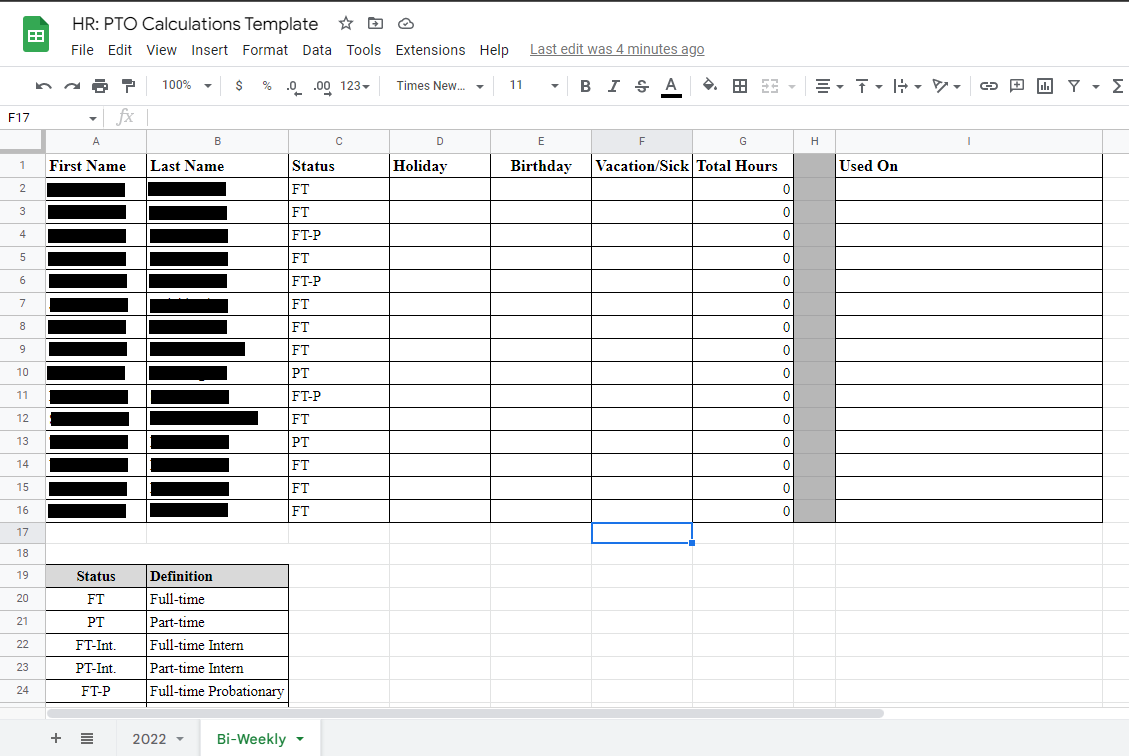
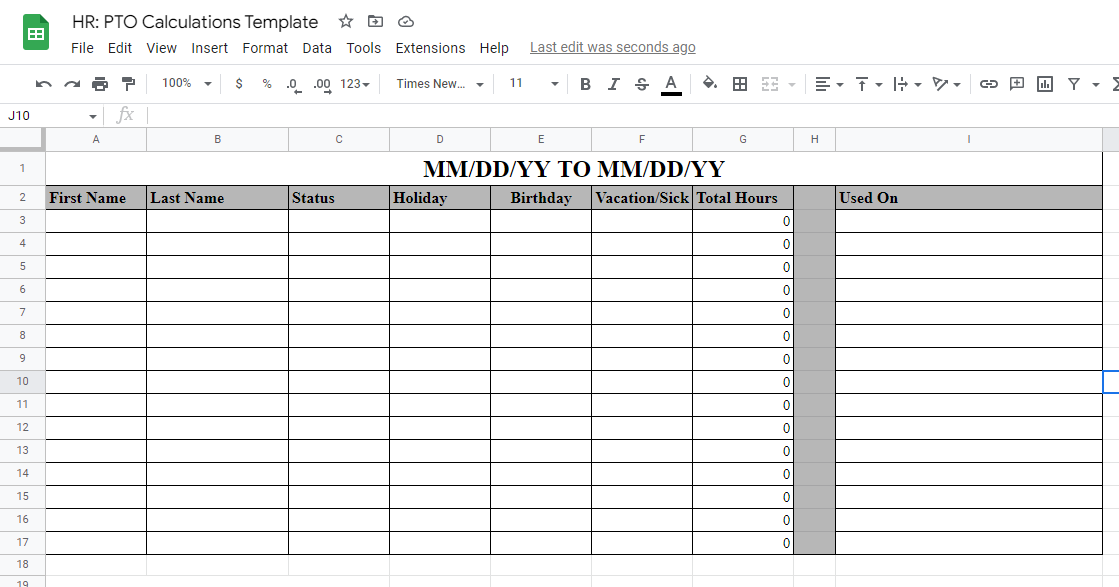
Create a new sheet for each pay period Right click on the sheet name at the bottom of the screen, select Duplicate from the available options. Right click on the new sheet and select Rename to name the sheet as the current pay period before editing the new page. Add and remove rows as needed as employees change. See the example below:
For calculating the amount of PTO used each pay period, use the sheet for that current pay period. Make sure the names listed here match the names of Employees on the original sheet and the _Payroll Hours & Commissions_ spreadsheet. The pay period sheet will be saved as a PDF to be sent on to the CPA for payroll processing.
The totals for Vacation/Sick will be deducted from the employee’s PTO total on the year page.
Payroll Hours & Commissions Template
For this template, rename the document with a dash and the year. For Example: _Payroll Hours & Commissions- 2022._
Create a new sheet for each pay period Right click on the sheet name at the bottom of the screen, select Duplicate from the available options. Right click on the new sheet and select Rename to name the sheet as the current pay period before editing the new page. Add and remove rows as needed as employees change. See the example below:
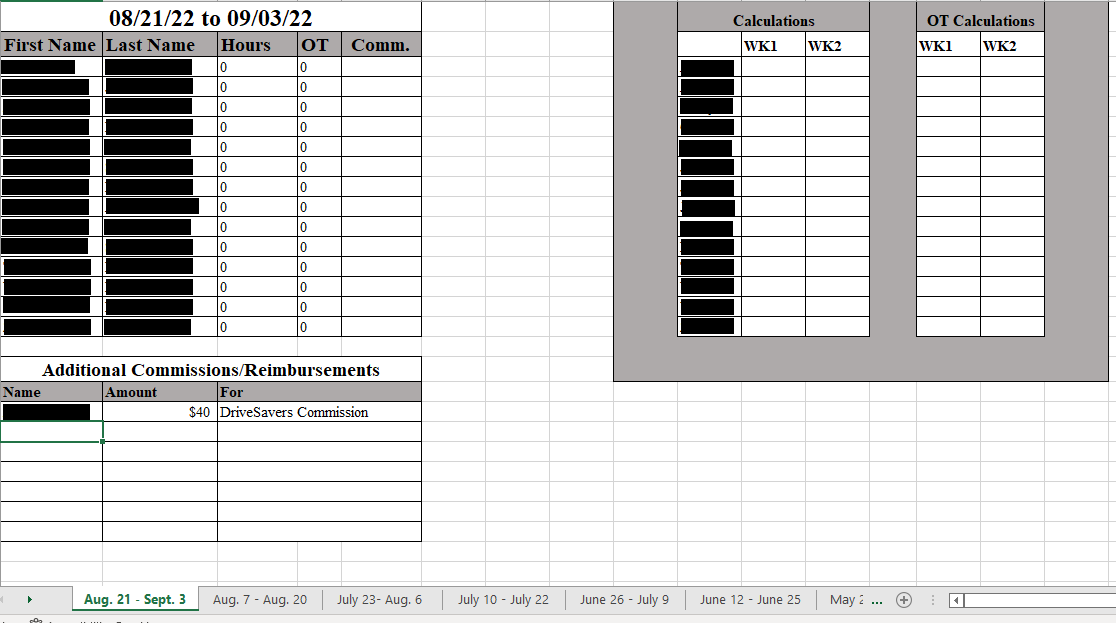
The current pay period sheet will be saved as a PDF to be sent on to the CPA for payroll processing.
Accessing PCRT Admin Page
You will need to have administrator permissions in PCRT in order to access this page. If you find you do not have these permissions, contact PCRT administrator for access.
In PCRT, hover over your username in the top right corner to expand the menu. Click, Timeclock out of the available options.
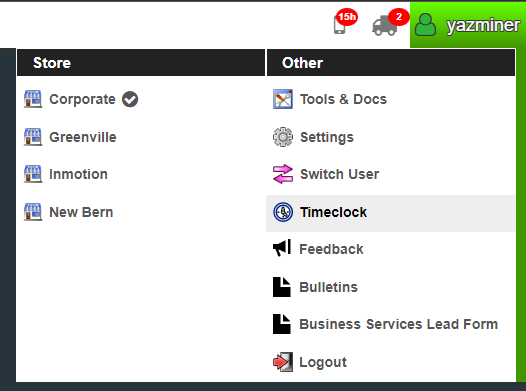
On the time clock page, you will see the time clock itself and a row of buttons are the center bottom of the screen, shown in the image below.
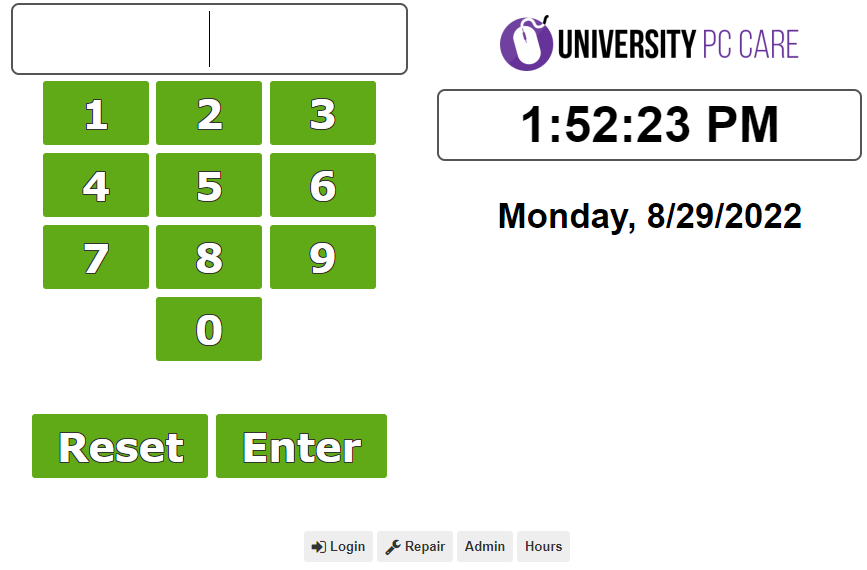
Click Admin, to load into the admin page. If this button does not appear on your timeclock screen, contact the administrator to gain access.

You will load into a similar page as shown below.
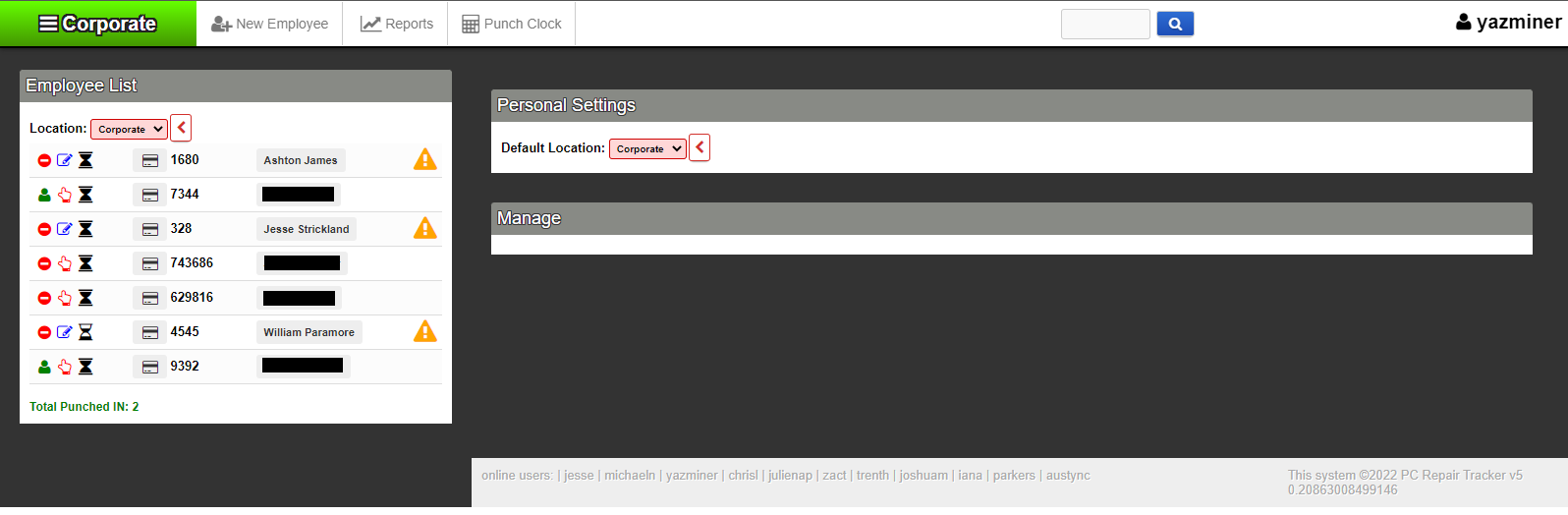
In the image above, you will see a yellow triangle this means no hours are entered for these employees. You will see this on the big three- Ashton James, Jesse Strickland and William Paramore- as they are salaried employees. They receive a base of 40 hours per week.
Processing PTO and Time Corrections
Before you begin Populating Reports go through the HR Tickets for time corrections and PTO requests that were approved during the pay period. All corrections need to be made before the reports are pulled so hours generated are correct.
Review the Communication: Navigating SupportPal System procedure for how to use SupportPal. If you do not have access to the HR department in SupportPal, request access from an administrator.
Time Corrections
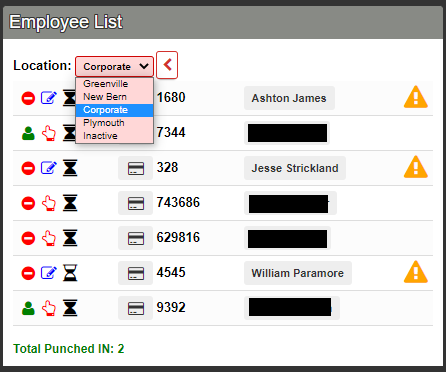
When you receive a time correction, the email into the HR Ticket should already include the employee's name as they will be emailing from their company issued email address. Find that employee on the Employee List on the PCRT Admin page. You can change the Location from the red dropdown menu in the same list.
Once you’ve clicked the employee’s name from the list, you will load the View Employee page which will look similar to the image below.
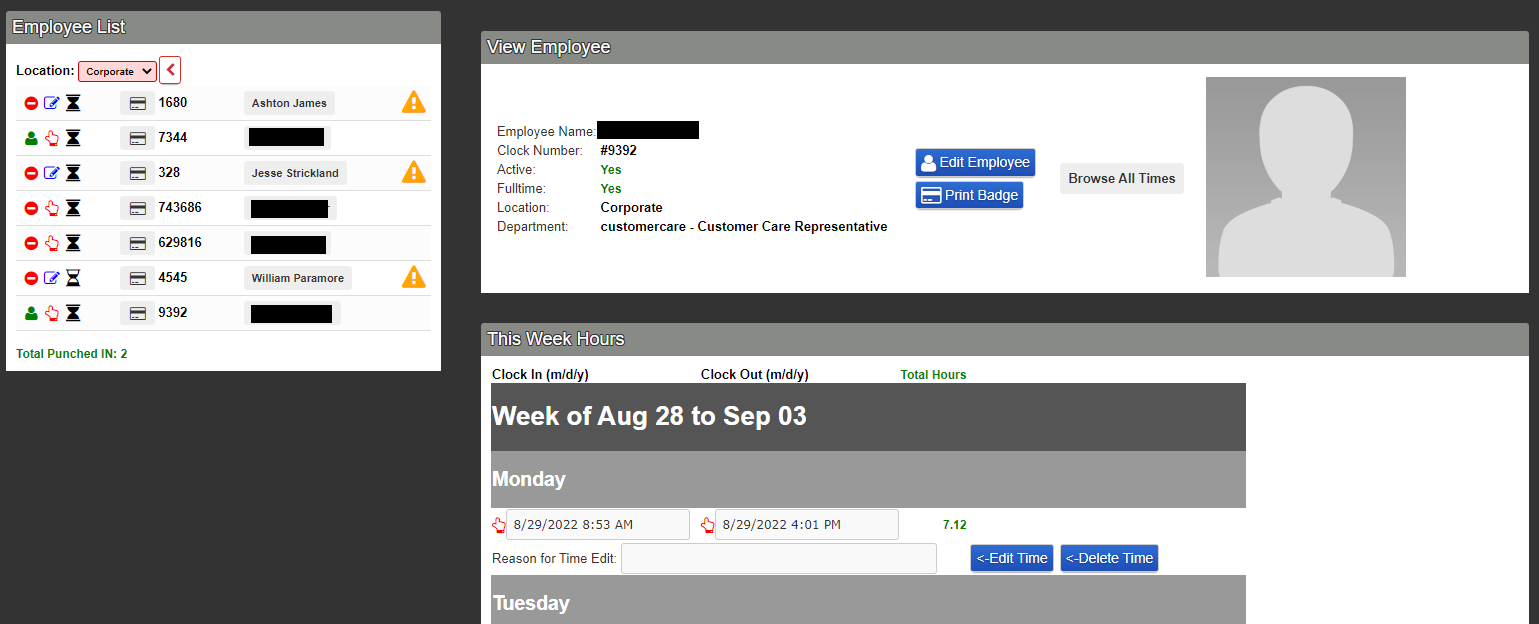
If the employee’s punches have been entered via the time clock you will see a red hand symbol next to the entry. If the punch has been edited previously or manually entered, you will see a blue page with a pencil next to the entry.
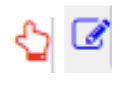
To make a correction, find the date the employee referenced in their email. If you are making a correction after noticing a discrepancy while populating the reports, locate the date of the discrepancy.
All punches are editable text fields. Click in the text field for the time you need to correct and enter the appropriate correction. Following this correction, enter the reason for the correction in the Reason for Time Edit text field.

Click the blue <-Edit Time button to the right of the reason text field to save the edit. The reason for edit will now appear with your PCRT username in red text under the text fields and the red hands will turn to blue sheets with pencils showing the correction has taken place.
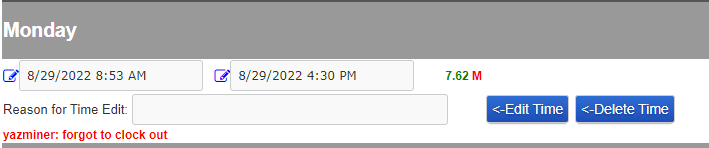
Enter a reason that best describes the situation that caused the need for an edit. Some suggested _Reasons for Time Edit_ are:
- Forgot to clock out
- Time clock issues
- Forgot to clock in
- Correcting Time Clock issues
If you are making a time correction based on an email submitted to HR, respond to the email stating that the correction has been made. Then close the ticket. See Communication: Replying to SupportPal Tickets and Communication: Closing SupportPal Tickets for how to proceed with those tasks.
PTO Requests
When reviewing approved PTO requests that come into the HR department, check to see what pay periods the days requested fall into. In some cases, there may be requests that need to be split into two pay periods. If this happens, create a new sheet on the HR: PTO Calculations Template you have made a copy of with the next pay period dates. Notate the dates and time of PTO for each pay period.
Do not forget to mark the time used on the year sheet to deduct the time from the employee’s available PTO.
If the PTO request ticket is still open after being approved, make a note on the ticket stating that the time has been deducted from their PTO for the year and notated onto the appropriate pay periods then close the ticket. See Communication: Replying to SupportPal Tickets and Communication: Closing SupportPal Tickets for how to proceed with those tasks.
Populating Reports
In the top left of the Admin page, you will see three (3) options available in the navigation bar. Select Reports.

On the next page, you will see the following report options.
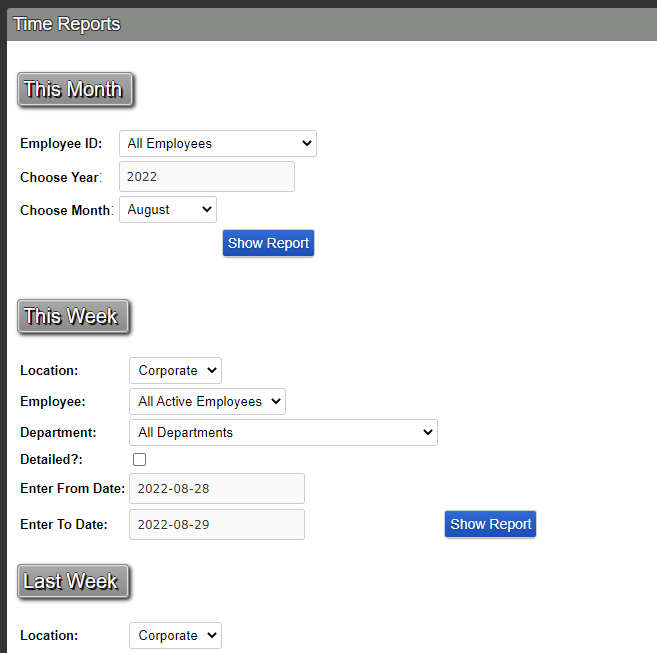
You will always use the This Month section to pull reports. The _This Week_ and _Last Week_ sections add weekly overtime (OT) into the total hours and do not show commissions. Leave the Employee ID set to _All Employees_ unless you need to pull the report for one specific employee. The year and month should automatically be set to the year you are currently in.
If the current pay period is split between two months, you will need to do these steps twice for each month.
The report will look similar to the image below, minus the redacted information.
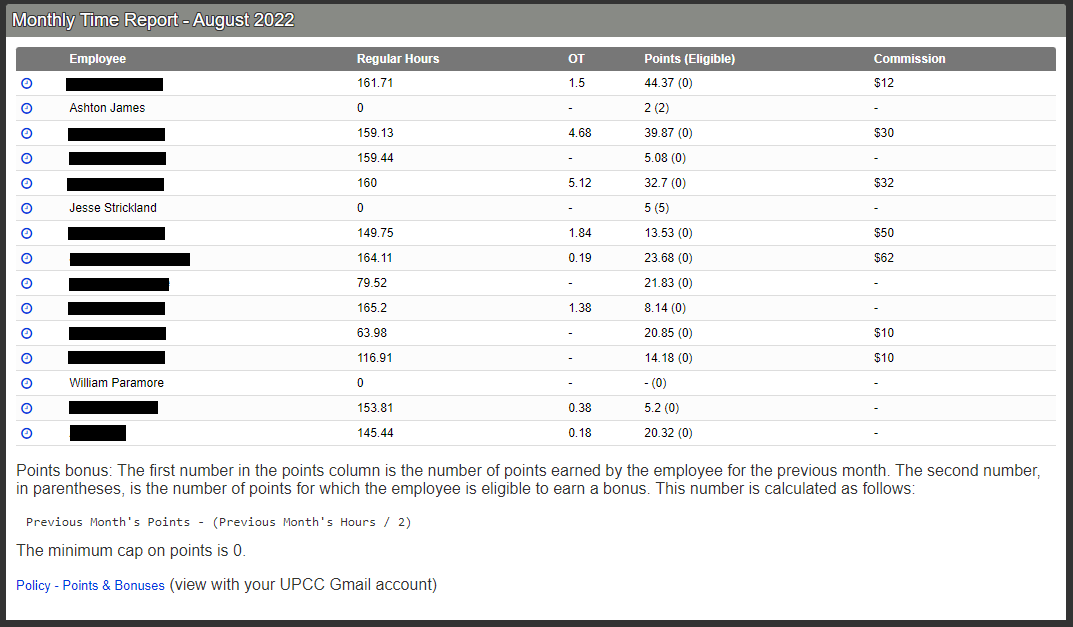
The report shows all active employees, their regular hours (40 hrs/wk), OT (any time worked after 40hrs), point (points bonus system currently inactive), and commission (totalled on a monthly basis).
The big three- Ashton James, Jesse Strickland and William Paramore- are salaried employees. They get a base 40 hours per week so they will not have time clock entries. Their time should already been entered onto the Payroll Hours & Commissions Template as 40 hours.
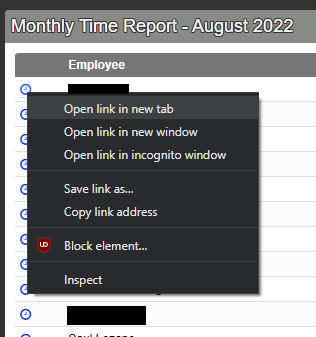
On this monthly report, you will see a column of blue clocks next to each employee’s name. Right click on the blue clock, select the Open link in new tab option to open that employee's time clock calendar for the month.
You will load into a page similar to the one below, minus the redacted employee name.
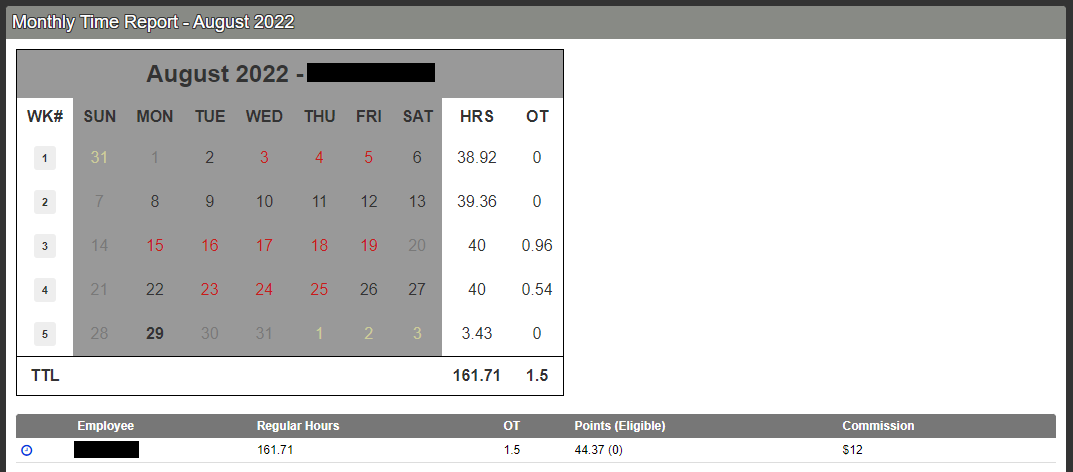
You will need to do this for each employee and for each month needed for that pay period. You can print each one out or leave them on the screen. Whichever is easier for you to follow as we move on with completing the Payroll Hours & Commissions spreadsheet.
Reviewing Populated Reports
When you are looking through the reports to complete the spreadsheets, make sure to pay close attention to the OT sections of the monthly calendars. If there is any OT in excess of one (1) hour, check the dates to see where the OT was accumulated from.
In some cases, when an employee forgets to clock out you will see obscene totals of OT. These will need to be corrected. Go to the Time Corrections section of this procedure for instructions on how to make corrections.
It is important to note, employees at both locations will receive one (1) hour of OT the week of their monthly meetings as these meetings are paid.
- New Bern: last wednesday of every month (during lunch)
- Greenville: first thursday of every month (after hours)
Outside of this allotted OT, look into the cause of the OT. Any excessive OT needs to be brought to the attention of the corporate team.
Completing Spreadsheets
Using the information you’ve gathered from the reports and HR Tickets. Fill out the spreadsheets.
Hours and Commissions Spreadsheet
For calculating the hours, there is a calculations table to the right of the totals table on the Payroll Hours & Commissions spreadsheet. See the example below.
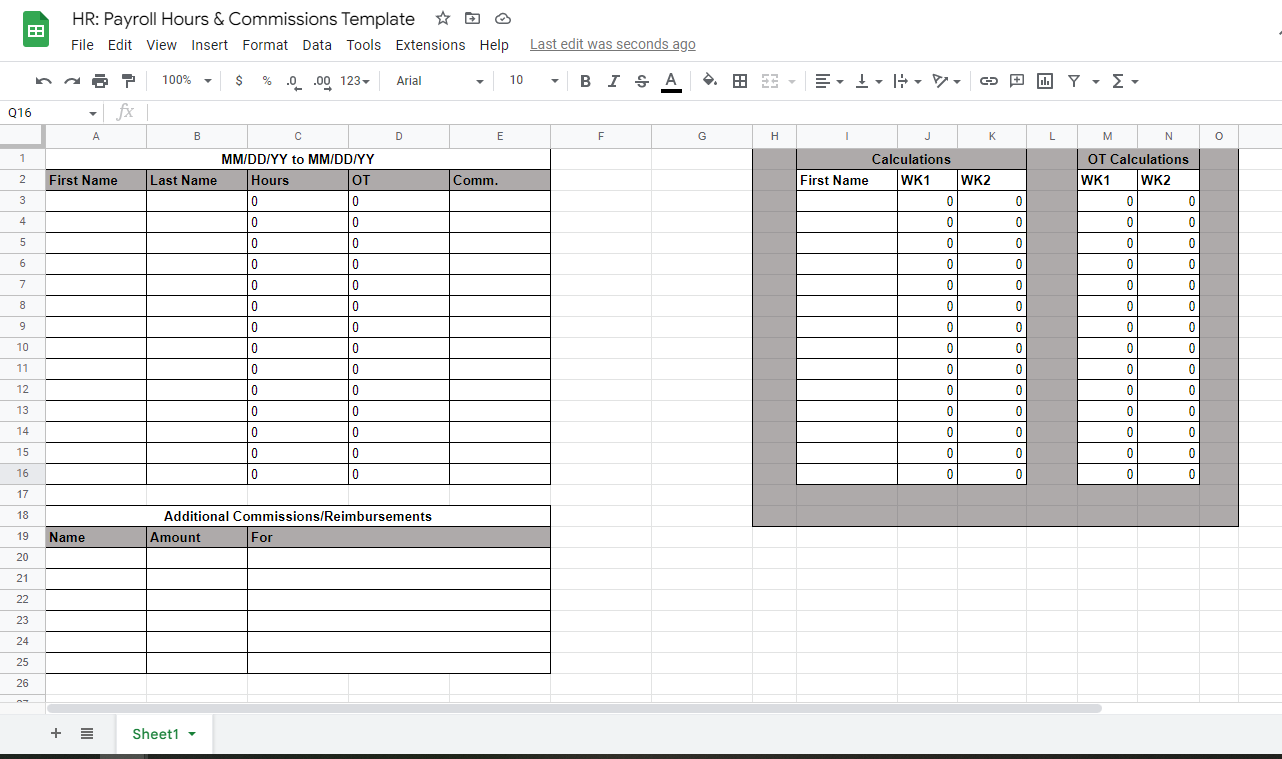
All you have to do is enter the data into the calculations tables for both regular and OT hours. The functions are already entered into the appropriate cells by default. As you enter the numbers for each week into the table the totals will appear in the pay period table to the left.
The below image is an example of a completed pay period calculation:
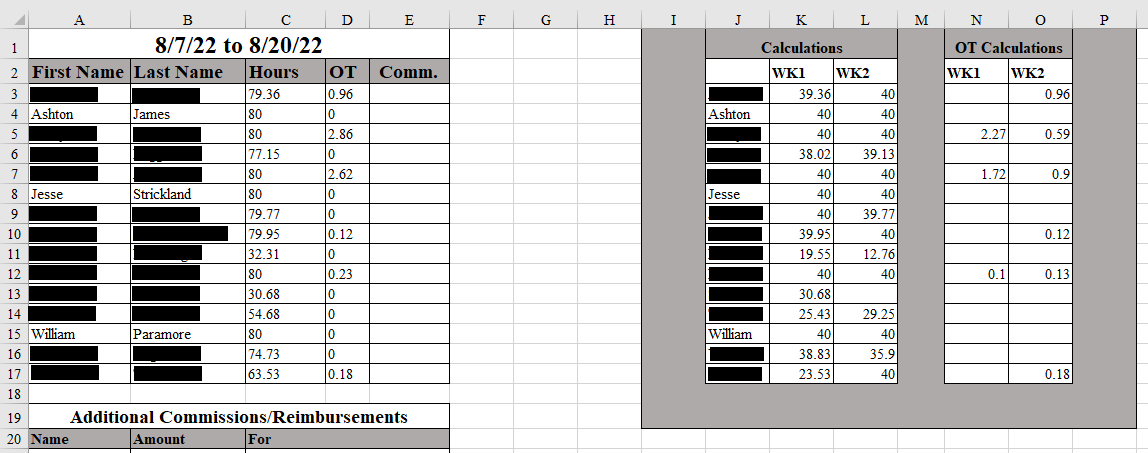
In the example above, you can see the Comm. column is left blank. PCRT actionable commissions (found in the Commissions column to the far right of the monthly report for all employees- see image below) earned in the month of July posted for the month of August and were paid out during the previous pay period that ended on August 6th. Even though they appear on the monthly report for the entire month of August, they will only be paid out once. All commissions earned in the month of August will appear in the report generated for September, and so on.
PTO Spreadsheet
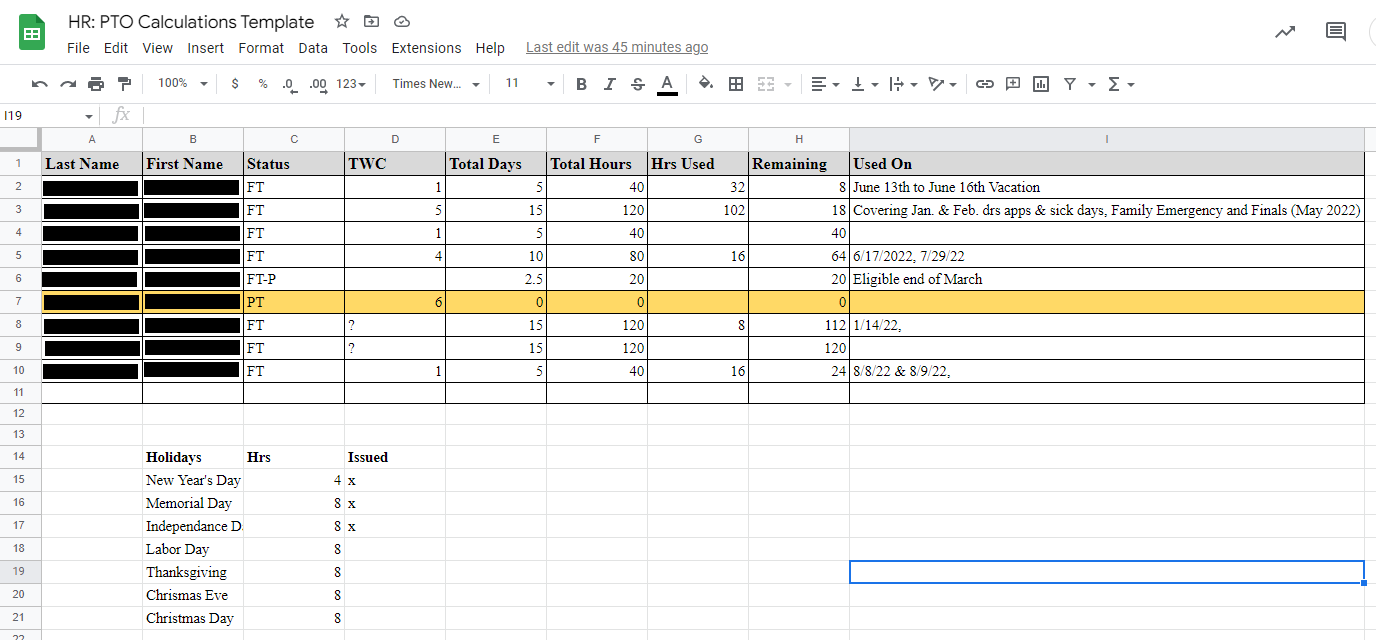
For the PTO Calculations, as you see in the PTO Requests section of this procedure, they have already been marked on the sheet during your review of the HR department in SupportPal. The only addition to this sheet will be holidays should they fall in the current pay period.
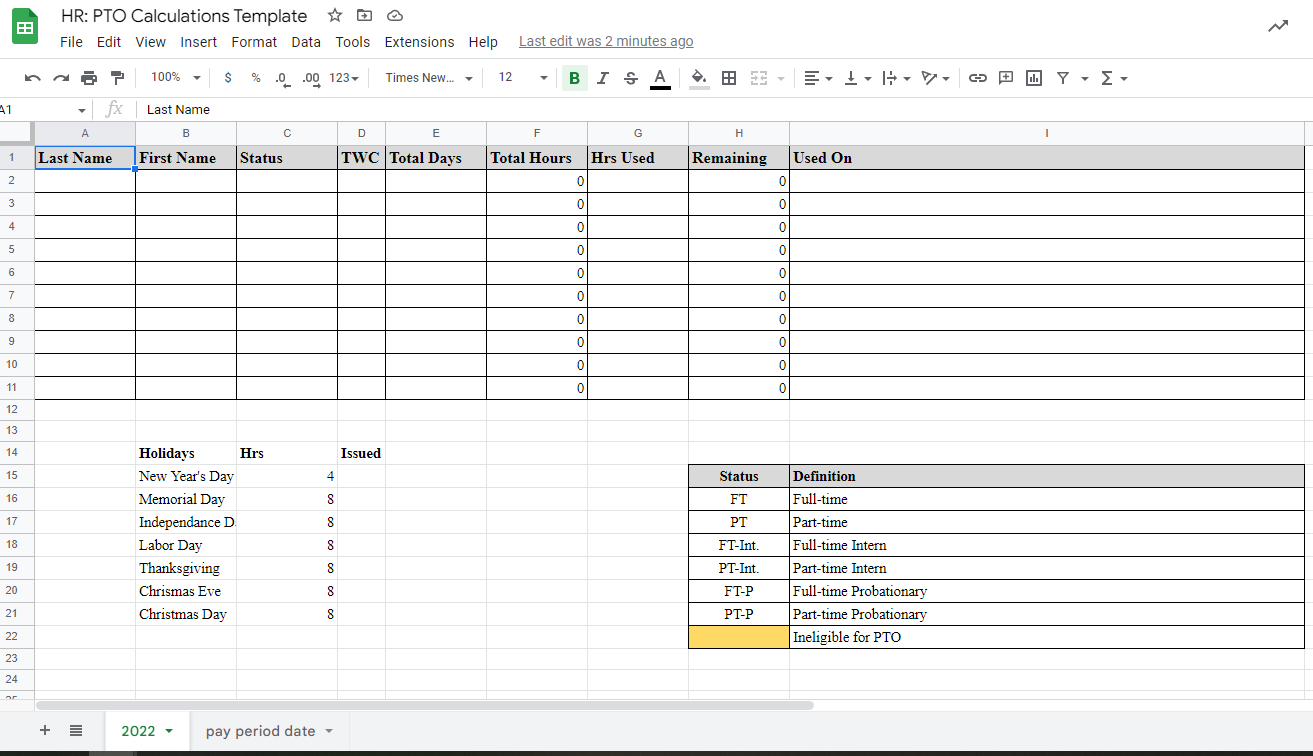
There is a Holidays list on the main year tracking sheet of the PTO Calculations workbook. It is located in the bottom left of the sheet. It lists the holiday and amount of hours paid for that holiday that specific year. The example below shows totals for 2022.
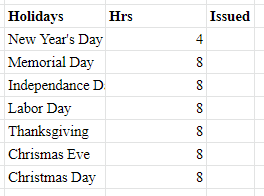
If the holiday falls on a weekday, eligible employees will receive a full day (8hrs) of holiday pay. If the holiday falls on a Saturday, eligible employees will receive a half-day (4hrs) of holiday day. These numbers are based on the number of hours the store will be open those days. Should a holiday fall on a Sunday, a day the business is already closed, the following Monday will be taken off and the eligible employee will receive a full day (8hrs) paid holiday.
Obtaining PDFs
Once each spreadsheet is completed, you will save a copy as a PDF. You can do this by clicking Print from either the _File_ drop down menu or click the Print icon on the toolbar.
The Google print preview will appear showing you a preview of the spreadsheet. Make the appropriate settings changes (i.e resizing, page orientation, etc.) to have the information you’ve prepared appear on one page. Then click Next.
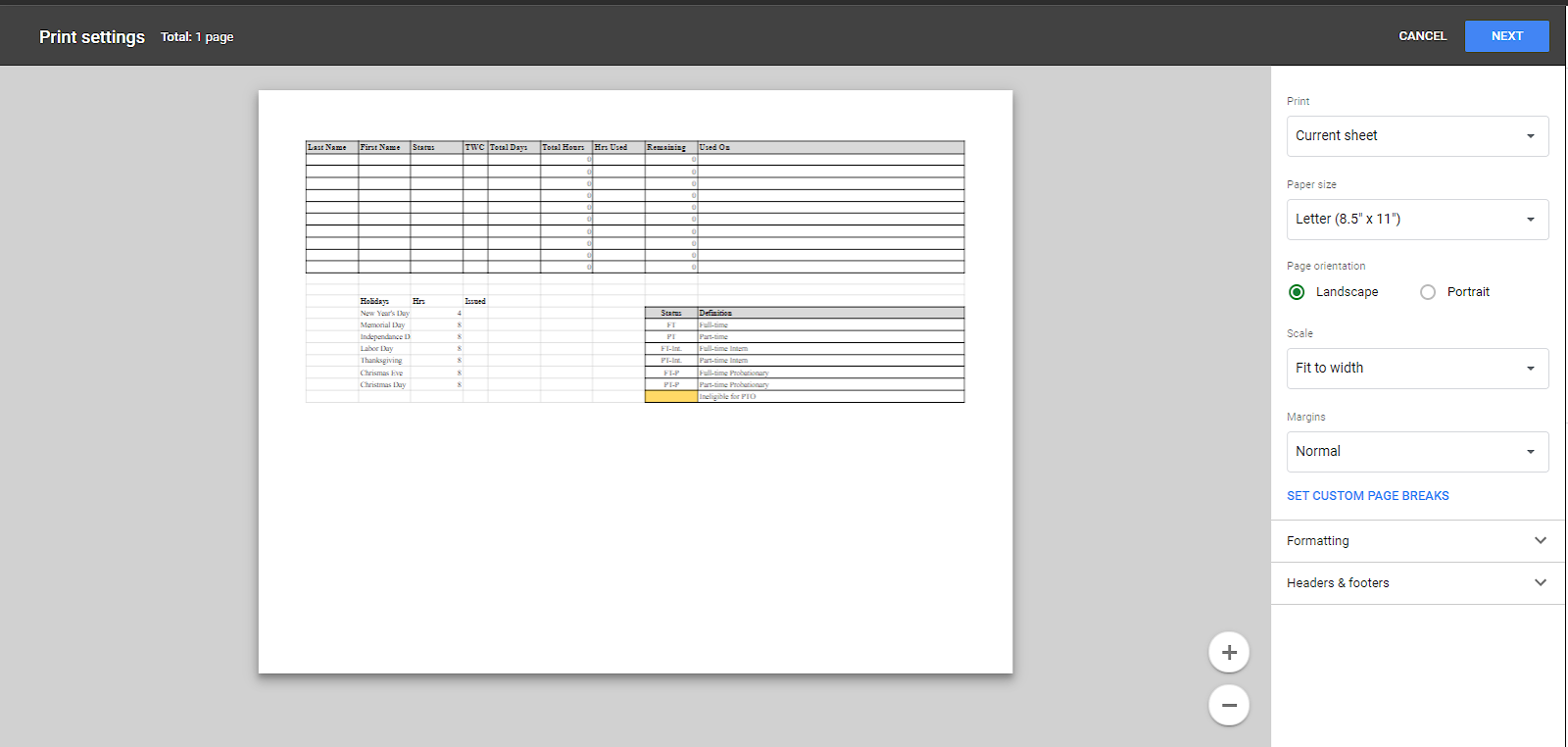
The print page will appear in the center of your screen. Change the Destination of the print to Save as PDF. Then click the Print button at the bottom of the settings column.
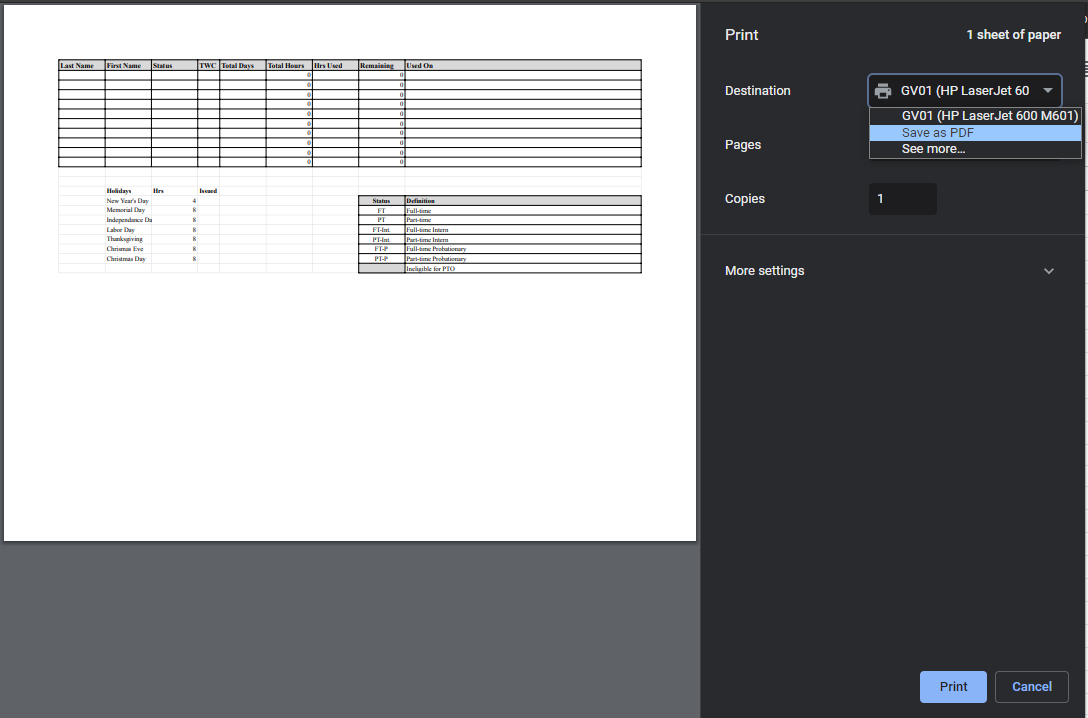
A new _Save As_ window will appear, save the PDF to your computer naming the document using the suggested formats below:
- Hours & Commissions: Payroll- MM.DD.YY to MM.DD.YY
- PTO Calculations: PTO- MM.DD.YY to MM.DD.YY
Once you have the PDFs saved, give the documents one last look over and have a corporate team member (Jesse or Ashton) if needed. Make any necessary corrections that need to be done if any are noticed then resave the PDFs saving them over the original versions you made. If the files are accurate and complete, prepare to email our CPA for processing.
Copies of the PDFs will need to be saved into the appropriate _UPCC- Payroll_ notebook in Evernote. Review the Office Management: Evernote File Management for how to proceed with that task.
Emailing CPA
You will use your company email to send the PDF copies of the spreadsheets to our CPA, Katy LaBarbera, for payroll processing. There are two emails you will need to the send the PDFs to:
The email can be simple but make sure to notate all relevant information. See the image below for an example:
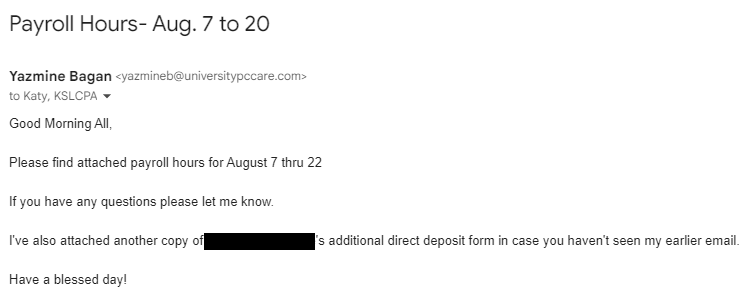
As you can see, the subject includes the current payroll period you are submitting for. The body also includes this information and also addresses another payroll matter that was brought up the same day in a separate email. This keeps everything cohesive and in the same train of thought.
Review the Communication: Email Etiquette policy for insight on how to send appropriate emails.