Canceling Subs
How to cancel subscriptions in PCRT.
You will need to have access to Invoices, Stripe and Subscriptions in order to proceed with maintenance.
Canceling Subscriptions
You will need to contact the remote team to let them know a subscription is being cancelled so the appropriate steps can be taken to remove our programs from the customer's device. On your end you will need to take the following steps to remove the subscription from their account. Go to the subscriptions page of PCRT to locate the subscription you are intended to cancel.
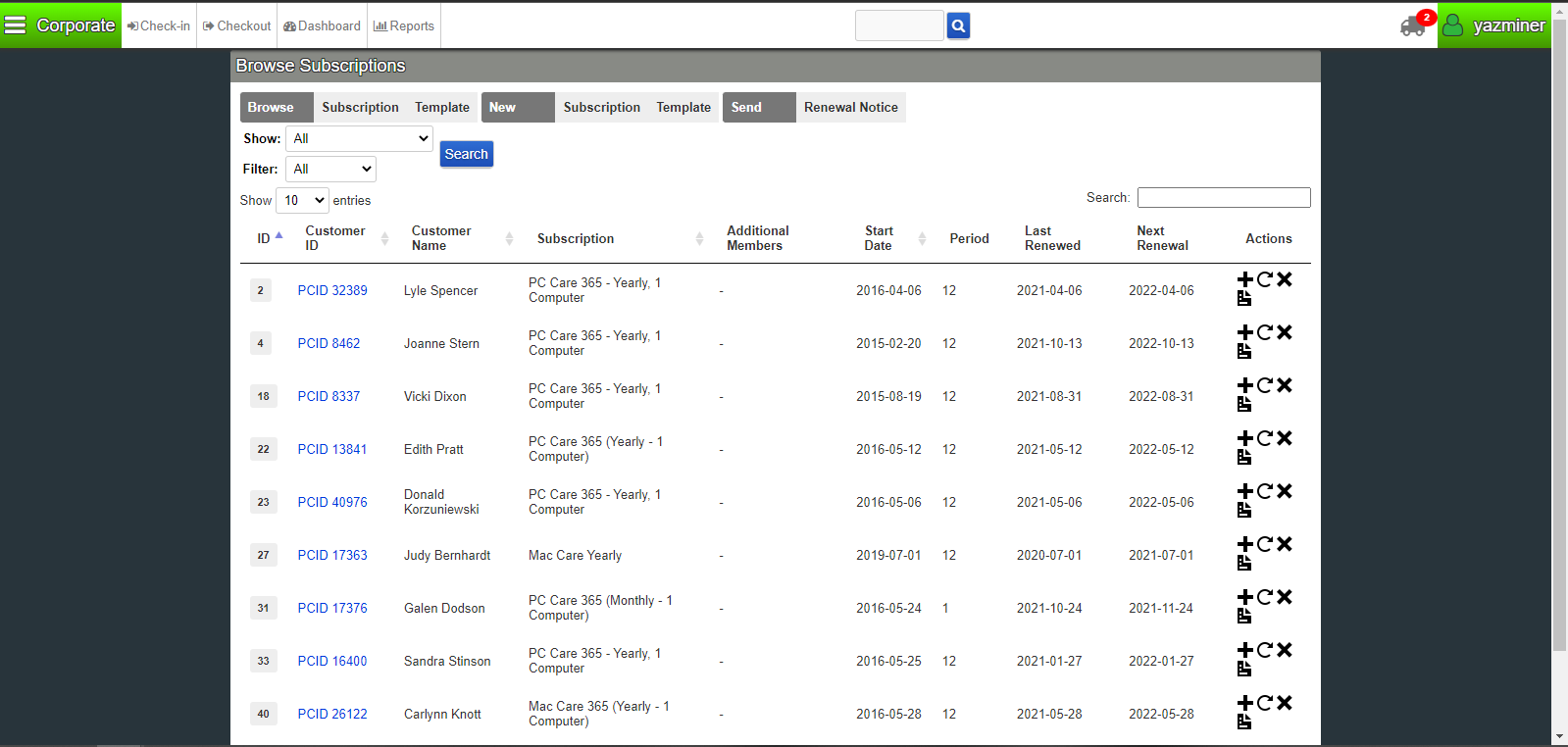
After locating the subscription, click on the History button. If there is Stripe Customer information listed on the subscription, move on to the Stripe subscription section for further instructions. If there is no Stripe Customer information listed, move on the Invoiced Subscription section for further information.
Stripe Subscriptions
Click on the Stripe Customer ID to open the customer's account in Stripe. A new page will open. Confirm the customer information matches the information in PCRT.

To cancel the subscription, hover over the right-hand side of the subscription until an X appears as an available button. Click on the X. A cancellation pop-up will appear.
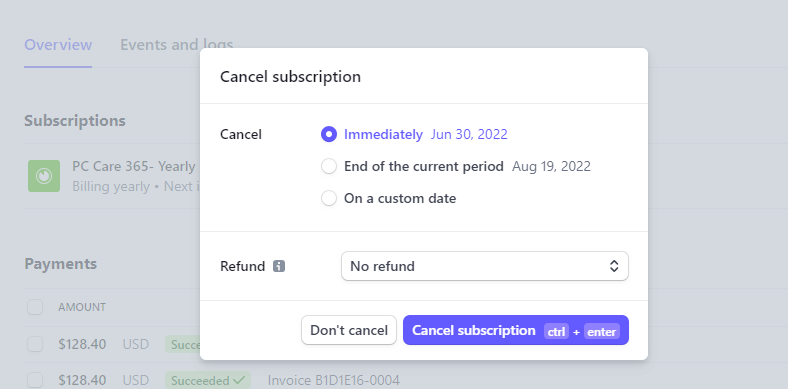
If the subscription is being canceled prior to the renewal date, select End of the current period. If the subscription is being canceled shortly after a renewal, select Immediately which is the default option.
When selecting Immediately, you will have the option to refund the plan. If it is within two (2) weeks after the renewal, select Last Payment. If it is past thirty (30) days, select Prorated amount.
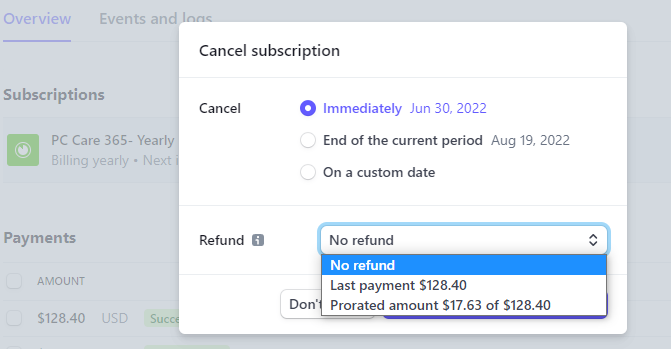
Once you’ve selected the appropriate cancellation option, click the blue button labeled Cancel Subscription. The pop-up will close and the subscription will either be grayed out or completely removed based on the cancellation type you selected.
Back on the Subscription History page of PCRT, click on the PCID link to view the customer asset. On this page, on Add Note to add a note describing what you just completed. For Example: “_cx requested sub cancellation, set to cancel at end of term (6/30/22)- YMB_”
If the subscription is being deleted immediately, go back to the Subscription History page. At the bottom of the subscription information, you will find available action buttons. Click on the red Delete button.
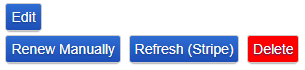
A pop-up will appear on your screen (location will vary depending on web browser being used). The pop-up will ask ”_are you sure you want to delete this subscription?”_ Click okay or yes (again varies based on web browser). The subscription will now be deleted from PCRT.
If the subscription will not cancel until the end of the term, leave the PCRT subscription in place until the end of the term, then follow the previous directions to delete the subscription from PCRT.
Invoiced Subscriptions
Click on the PCID link to view the customer asset. Check the asset notes section to see if a Recurring Invoice has been created for the customer.
Got to the Invoices page of PCRT. Click to view the Recurring Invoices.

In the text field to the right of the navigation bar, search for the customer’s name. Once you’ve located the customer, click to view the Recurring Invoice information page.

On the Recurring Invoice page, confirm that the customer information matches the customer you are currently looking to cancel service on. If it does, under Invoice Status select the deactivate button.
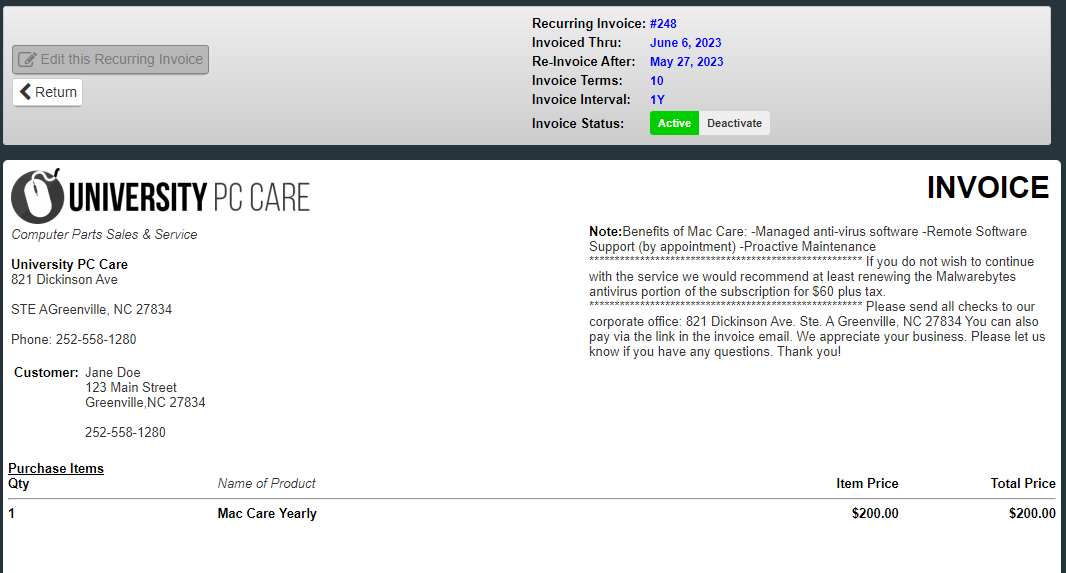
Before leaving this page, scroll down to the bottom where it lists the invoice history. If there are any open invoices, ensure they are voided. View Procedure- Invoice Maintenance on how to void the invoice. If there are no open invoices, move on to the next steps.
Back on the Work Order History page, click on Add Note to add a note describing what you just completed. For Example: “_cx requested sub cancellation, deactivated recurring invoice, voided open invoice and deleted sub (6/30/22)- YMB_”
Go back to the Subscription History page. At the bottom of the subscription information, you will find available action buttons. Click on the red Delete button.
A pop-up will appear on your screen (location will vary depending on web browser being used). The pop-up will ask _"are you sure you want to delete this subscription?”_ Click okay or yes (again varies based on web browser). The subscription will now be deleted from PCRT.