Sending Invoices
How to send invoices.
Sending Invoices
Sending Invoices via Email
As stated throughout the invoice creation process, you can click email from either the Invoice page of PCRT or at the print preview screen.
Sending invoice emails from PCRT will provide customers with a copy of the invoice that includes a Pay Invoice link for electronic payment. However, the email is sent as a full HTML message and does not provide them with a PDF copy of the invoice. If a customer requests a PDF copy of the invoice, take the following steps:
- Find the invoice from the Invoice page of PCRT
- Select to print the invoice from the available options
- If the print window does not automatically open, click print from the print preview page. It will be located in the top bar.

- Set the Print Destination to Save as PDF.
- Save the PDF as Invoice #### (this should be the default name used)
- Using your company email, attach the PDF to the email you will send to the customer.
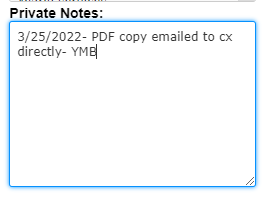
- After it has been sent, make a Private Note on the Invoice that states a copy of the invoice was sent via direct email. See the example below:
Sending Invoices via Post/Mail
As part of the invoice creation process, you will be printing hard copies of the invoices. Most customers will prefer to receive an email but as a courtesy and in the interest of being thorough, hard copies are mailed as well. Once per month a mass mailing is done for all open invoices. These same steps will be taken for the monthly mass mailing. View the Mailing Past Due Invoices section for the additional steps to take for Past Due invoices.
You will need to have our company envelope template or the label template for shipping labels that are available at the office. Both are available from the Corporate Administrator. Using the templates, either copy and paste the mailing address from the invoice in PCRT or manually enter it based on the printed hard copy that you have.
Use security envelopes to mail any documents from the office. Envelopes are available on the Office Supplies shelf in the office. The envelopes are self-sealing (peel and stick flap) and stamps already have adhesive on them, there is no need to lick and seal either the envelope or stamp.
Place all addressed, sealed, and stamped envelopes in the Outgoing Mail bin in the office.
Mailing Past Due Invoices
You will need to have access to our Invoice Letterhead and Interchangeable Texts. You will need to make a copy and adjust the contact information to reflect your own (if you have not already completed this). Request this document from our Corporate Administrator.
An Overdue Invoice letter will need to be sent with each overdue invoice that is to be mailed. If one customer has multiple overdue invoices, add each invoice to a single letter. The table located in the center of the letterhead can be adjusted to accommodate multiple invoices.
DO NOT staple, seal and mail the overdue invoices without them first having been scanned for recording keeping. If you do not have access to a scanner, hand the completed letters with their attachments to the Corporate Administrator to scan and mail.
Follow up
Once an invoice is sent, it is the responsibility of the Customer Service Representative to follow up with the customer. Email reminders can be sent every five (5) to ten (10) days via email. You can do this from the Invoices page of PCRT.
Select all the invoices you wish to send reminders for by clicking the check boxes next to each invoice row.

Scroll to the bottom of the page to find the Multiple Invoice Actions section. Select Email from the available options before clicking the blue “Go” button.
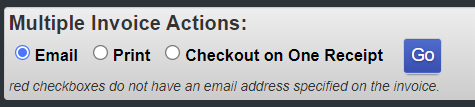
The page will load a list of the invoices that emails will be sent to then automatically refresh the invoices page of PCRT.
Hard copy reminders are sent monthly. See Sending Invoices via Post/Mail for additional information on how to proceed.